Hyperliquid: Duplicate Wallet Addresses
Last updated: October 15, 2026
This guide explains how to identify and resolve duplicated Hyperliquid wallet addresses that may have been imported into your account.
We recently fixed an issue with our Hyperliquid integration that may have caused some wallet addresses to import twice. The update now prevents new duplicates from appearing, but any existing duplicates won’t be removed automatically.
How to Check for Duplicate Hyperliquid Wallets
Log in to your Summ account (formerly Crypto Tax Calculator).
Go to the Accounts page.
Find your Hyperliquid account.
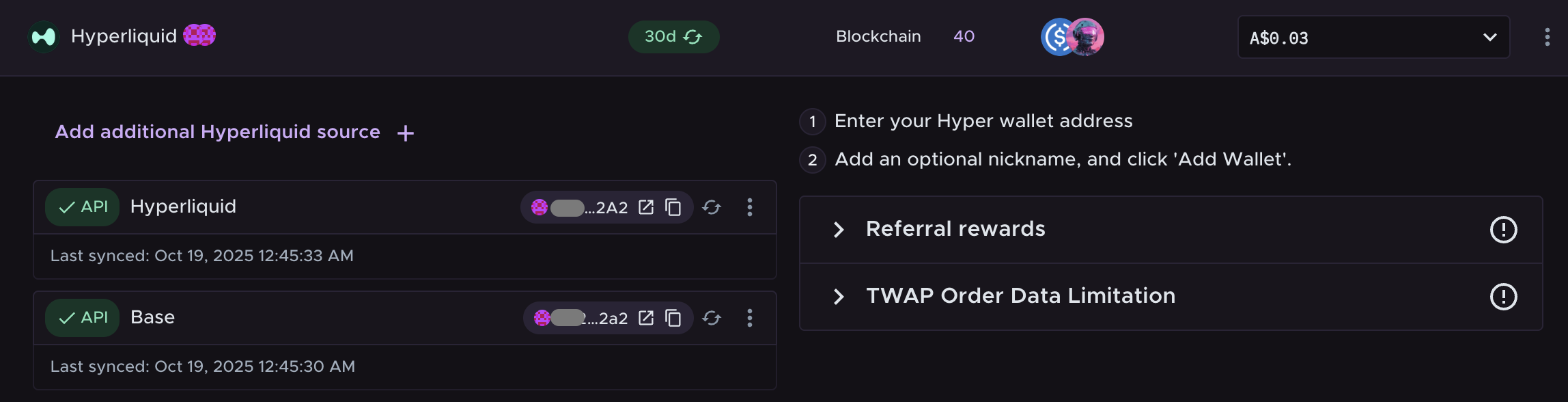
Review the imported wallets and check if any appear twice.
Duplicate wallets will display the same wallet address, as shown below:
Which Wallet Should You Keep?
We recommend keeping the version of the wallet address that appears entirely in lowercase. To confirm, hover over each address to view the complete address.
In the example below, the second wallet is all lowercase, so that’s the one to keep. The first one includes uppercase characters and can be deleted.

If You’ve Already Categorised or Reconciled Transactions
If you’ve already made edits (such as categorising or reconciling transactions), you may want to review the transactions for each wallet before deciding which one to keep.
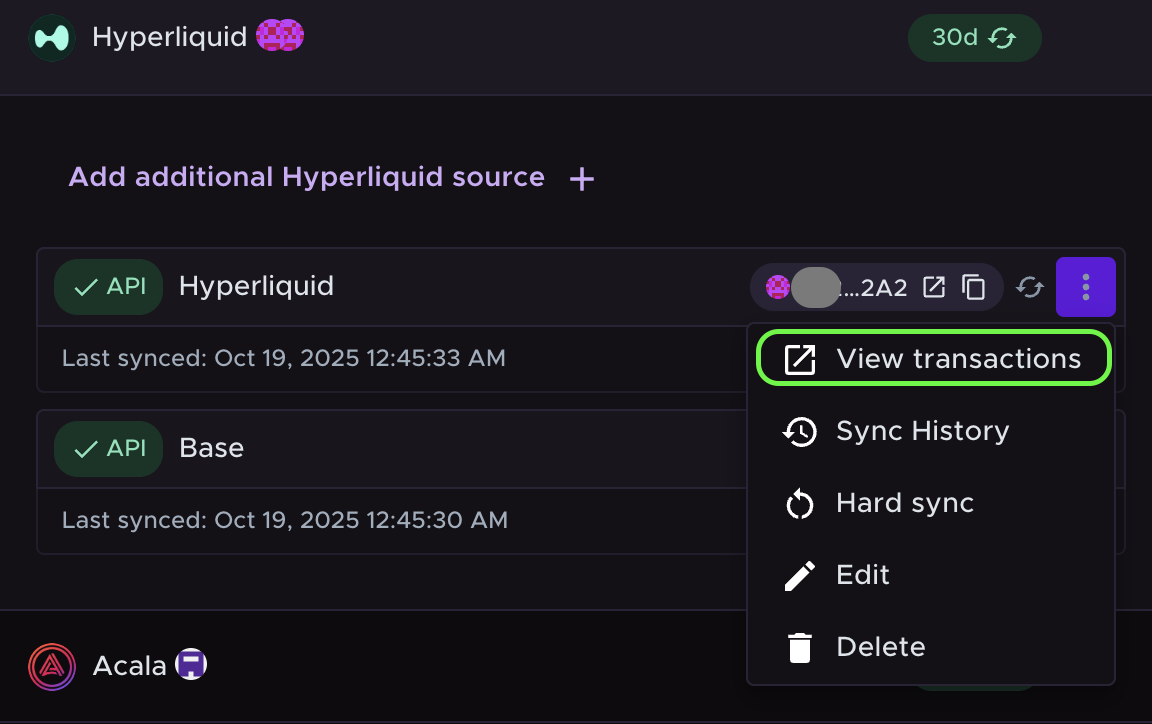
To review transactions:
Click the three dots on the right side of the wallet.
Select View transactions.
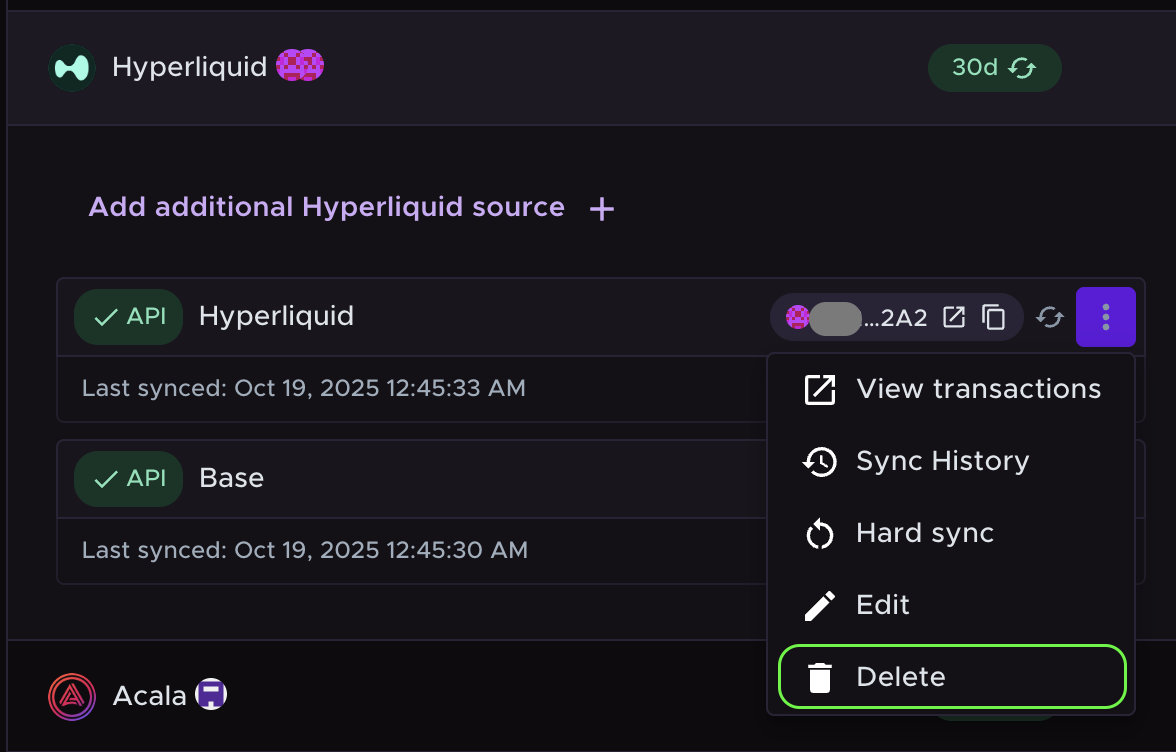
Once you’ve compared both wallets and chosen which one to keep, you can delete the duplicate:
Click the 3 dots next to the duplicate wallet.
Select Delete.
Wait for calculations to fully refresh — the wallet and its transactions will be removed.
Need help?
If you need help reviewing your wallets or deciding which one to keep, please feel free to reach out via our in-app messenger — we’re here to help.
We’re really sorry for any inconvenience this issue may have caused and appreciate your patience.