
Setting up 2FA
How to set up two-factor authentication (2FA) in Summ.
Go to Settings > Account and turn on the Two-factor authentication toggle.
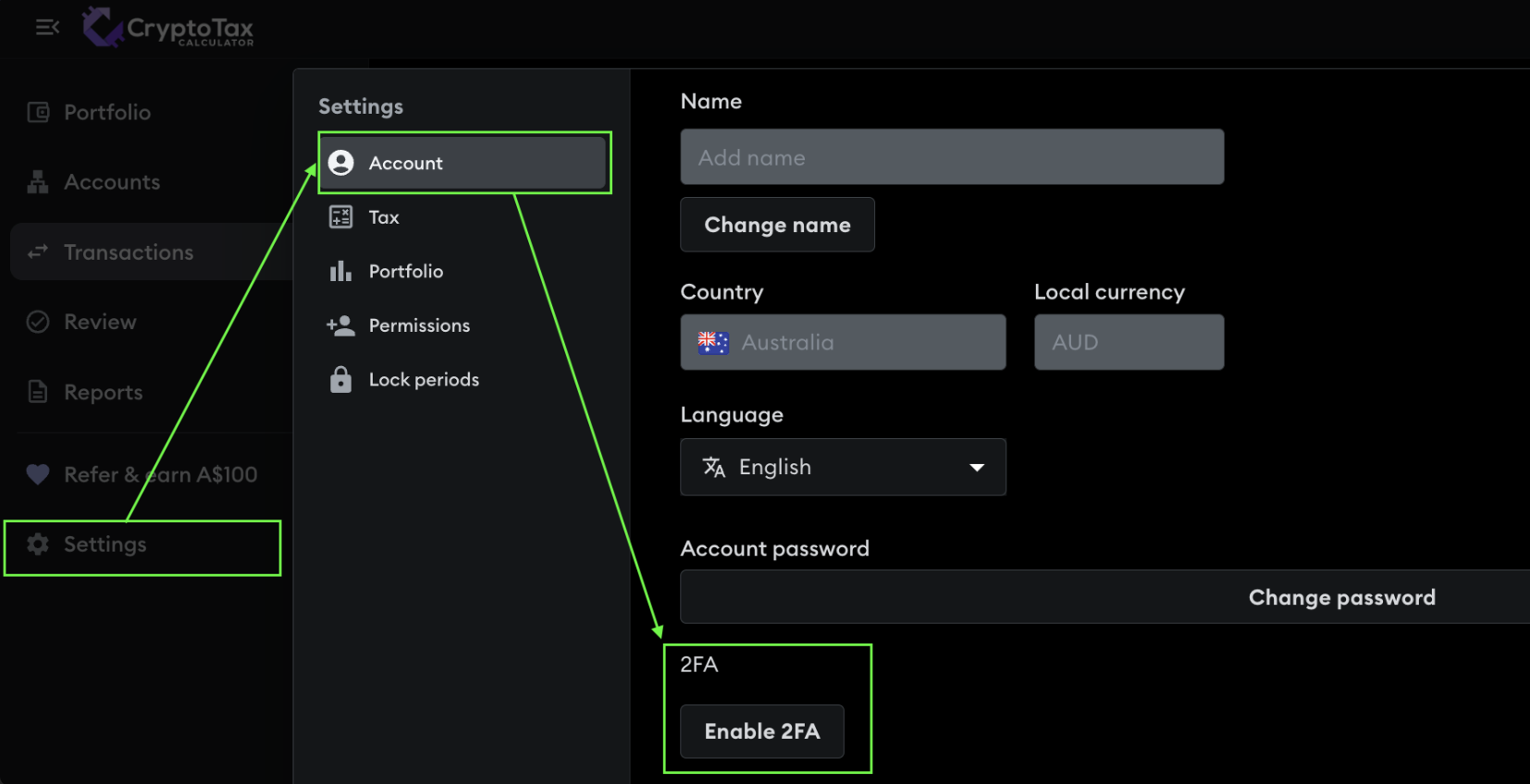
2. In the window that opens:
Enter your password.
Scan the QR code with an authenticator app such as Google Authenticator or Authy. If you can't scan it, copy the code shown and enter it in your app manually.
Enter the 6-digit code from your app and click Verify.
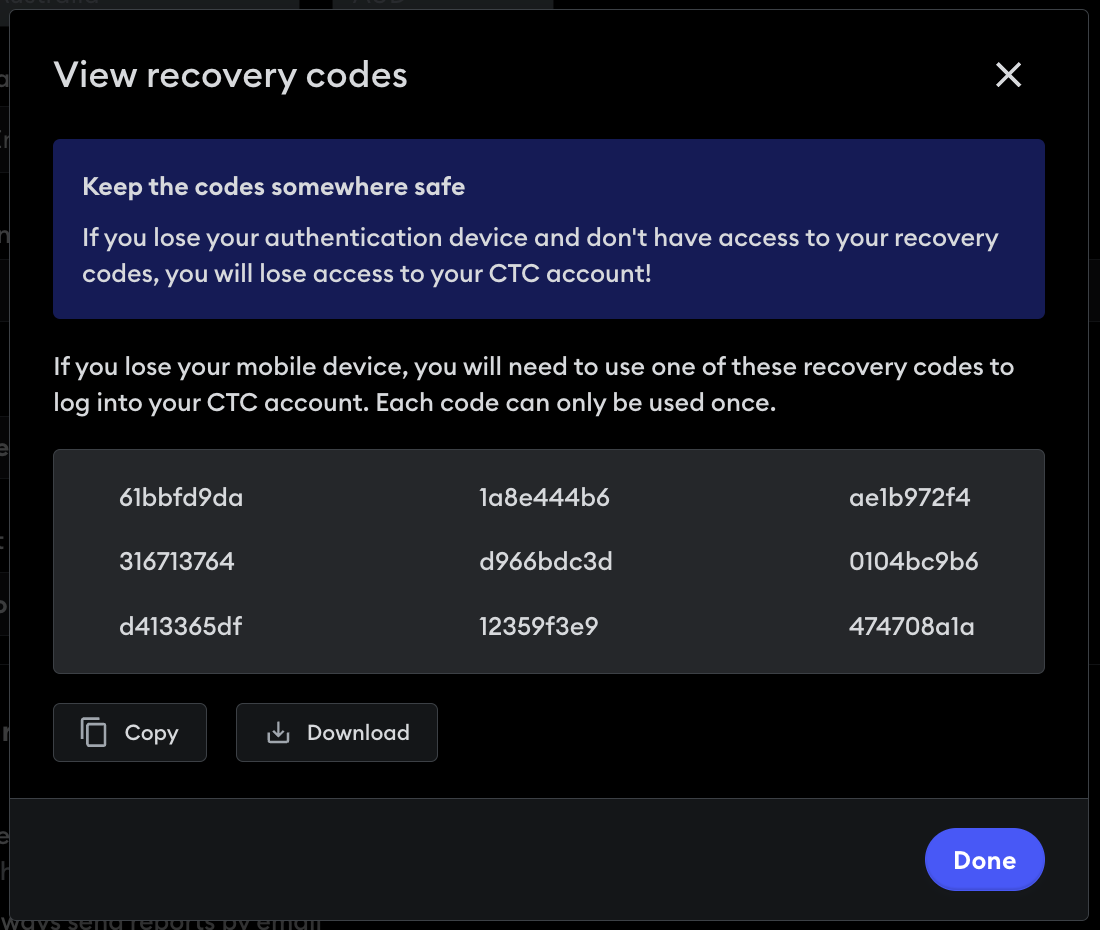
3. Save your recovery codes. You can copy or download them. Each code can only be used once.
⚠️ Note: If you lose your authentication device and don't have your recovery codes, you will lose access to your Summ account. Keep these codes somewhere safe.
FAQ
Q: What do I do if I lose my 2FA?
If you lose your mobile device or access to your authenticator app, use one of your recovery codes instead of the 6-digit code when you log in. Each recovery code works once, so keep the rest somewhere safe.
Q: How do I turn off 2FA?
Go to Settings > Account and turn off the Two-factor authentication toggle. Enter your current password and the 6-digit code from your authenticator app, or a recovery code, then click Submit.
Still need help? Email [email protected].