
Using Filters on the Transactions Page
The Transactions page can hold thousands of rows. Filters narrow it to the ones you need to check: one asset, one account, one category, one date range, or any combination. This guide covers the quick filter chips, the All Filters menu, combining filters with Match All or Any, saving a view you use often, and bulk editing everything a filter matches.
Where to find the filters
Open Transactions from the left menu. The filter bar sits directly above the table:
A Search box on the left.
Quick filter chips for Category, Account, Asset, Value, and Date.
An All Filters button for every other criterion.
On the right, View and Columns, which change what the table shows rather than which rows it shows.

The counter next to the page title shows how many rows match. With no filter it shows the total (for example, 389 txs). With a filter it shows, for example, 101 of 389 txs.
Quick filters
Click a chip, for example Category.
Tick one or more options. Use the menu's search box to jump to an option, or tick Select All.
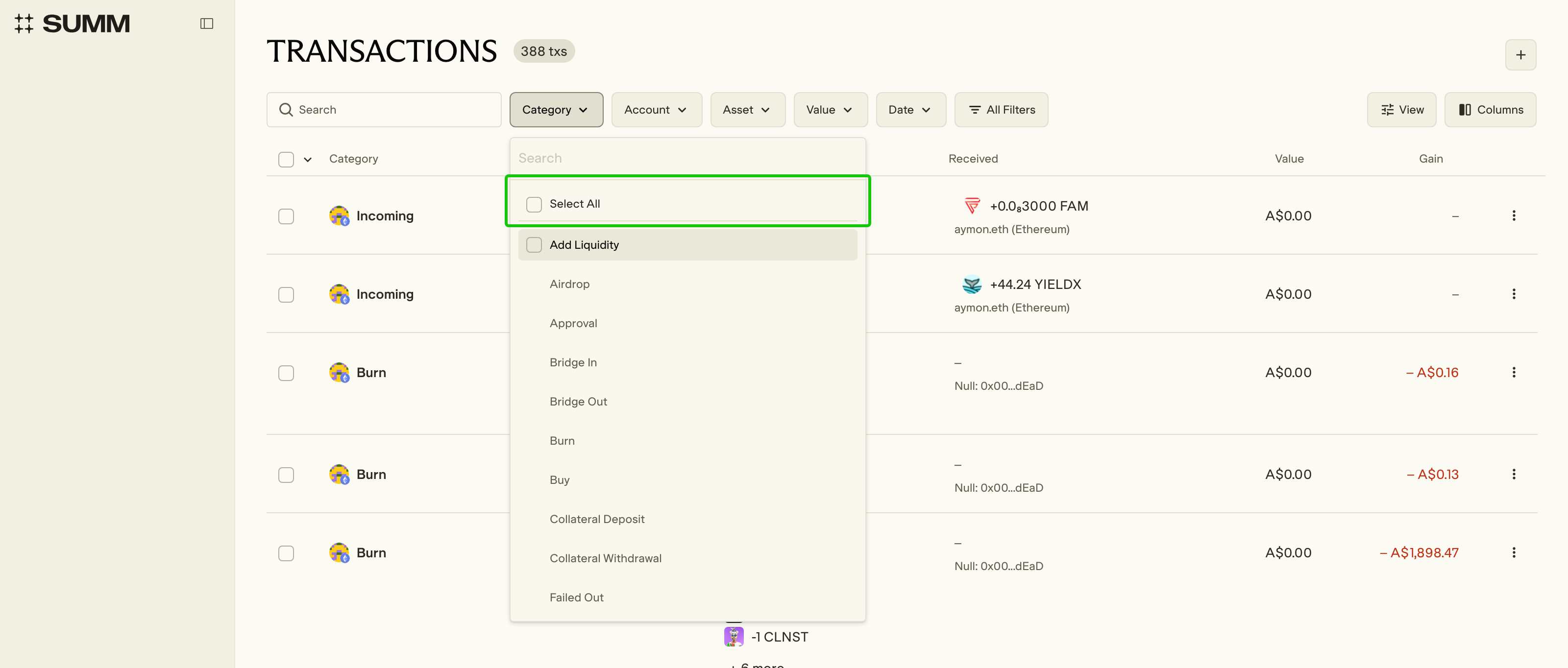
Click anywhere outside the menu. The filter appears as a chip under the bar, for example Category is Buy, and the table updates.
All Filters
Click All Filters to see every criterion. Type in the search box at the top of the menu to jump to one. The most-used criteria are at the top (Account, Asset, Category, Value), and the rest follow alphabetically.
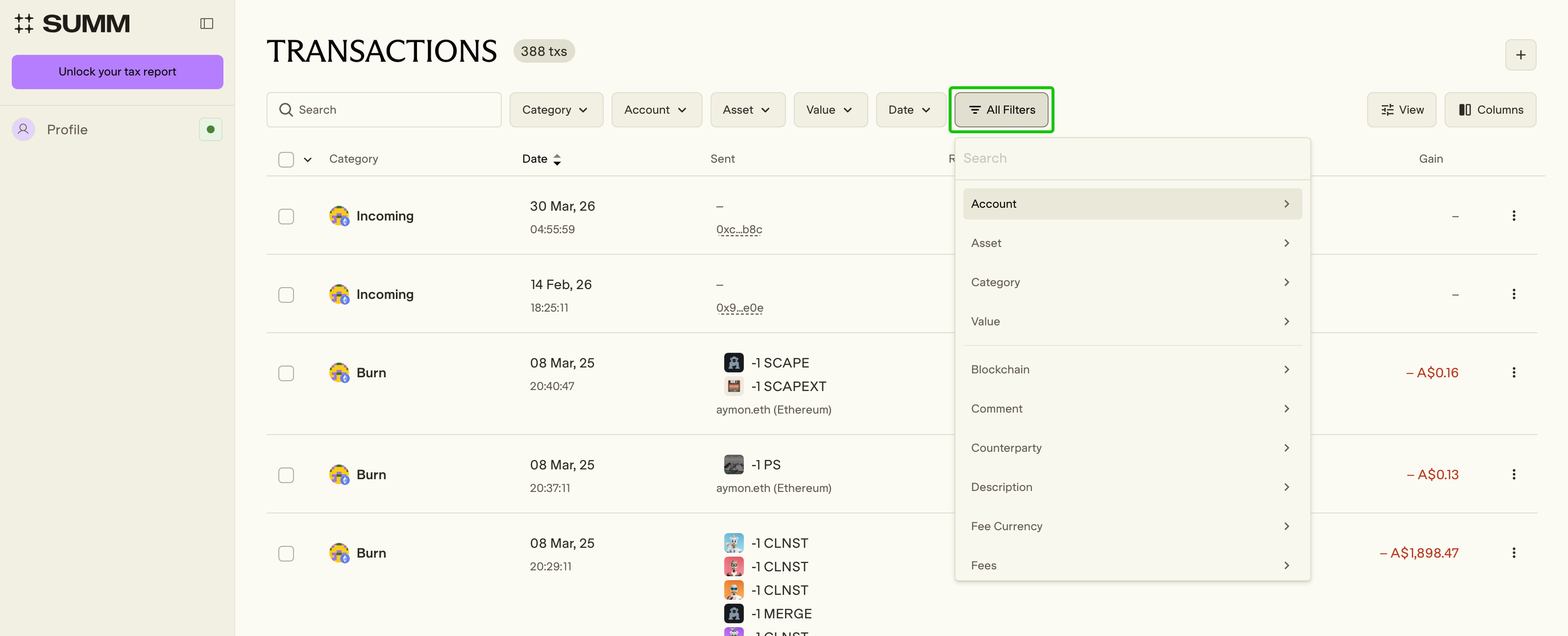
Criterion | Finds transactions... |
Account | on a specific wallet or exchange account you have added |
Asset | involving a specific coin, token, or NFT |
Category | with a given category (Buy, Sell, Trade, Transfer, Incoming, Outgoing, Staking Reward, and so on) |
Value | whose value in your local currency is above, below, or between amounts you set |
Date | within a start and end date |
Blockchain | on a specific chain (Ethereum, Solana, Base, and so on) |
Comment / Has Comments | whose comment contains a word you typed, or that have any comment at all |
Counterparty | with a specific other party, such as a contract, an exchange, or an address you haven't added |
Description | whose imported description contains a word you typed |
Fee Currency / Fees | whose fee was paid in a given asset, or that have (or don't have) a fee |
From / To | by the sending or receiving side |
Import Type | by how they arrived: API, CSV, wallet, or added manually |
Integration | from a given exchange or wallet type, across all accounts of that type |
Interaction | that were (or weren't) smart-contract interactions |
NFT Collection | involving NFTs from a specific collection |
Requires review / Reviewed | carrying a warning (missing price, missing purchase history, uncategorized, and so on) or that you have marked reviewed |
Sync | imported by one particular sync. See Filter transactions by sync. |
Tax Outcome | by their tax result (income, short-term gain, long-term loss, and so on) |
Tx ID / Tx Signature / Tx Method Id | by blockchain hash or exchange ID, or by the contract function that was called |
Some criteria only appear when they apply to you: Locked once you've locked a tax period, Tag and Has rules on plans that include those features, Type on business plans, and the accounting-integration account filters when an accounting integration is connected.
Combining filters: Match All or Any
When you have two or more filters, a Match pill appears at the start of the chip row.
Match All: a transaction must match every chip. Category is Buy and Asset is ETH shows only ETH buys.
Match Any: a transaction only needs to match one chip. The same two chips now show every buy plus every ETH transaction.
Click the pill to switch between All and Any.

Each chip also shows its condition. Option filters read is; click the word to flip it to is not. Text filters such as Description, Comment, and Tx ID read contains or does not contain. Remove one chip with its ×, or click Clear to remove them all.
The Search box
Typing in Search looks across several criteria at once: asset tickers, account names, categories, and counterparties. Pick a suggestion to add it as a chip. You can also paste a wallet address or a transaction hash straight in. Summ recognizes the format and offers the matching filter.
Save a view you use often
Build the filter.
Click Save at the right of the chip row. A name box opens above the chips.
Type a name, for example ETH buys, and click Save view.
The saved view appears under Transactions in the left menu, with its transaction count, and as a bar above the table while it's open. Click it to load the filter instead of rebuilding it each time. Use the ⋮ next to its name to rename or delete it, and × to close it. You can save up to 10 views, and each needs its own name.
Bulk edit everything a filter matches
Filters and bulk edit work together. Tick the checkbox in the table header to select every row on the page. If the filter matches more rows than fit on one page, the bulk edit bar offers Select all transactions that match this filter. Choose it, and your next edit (recategorize, change currency, ignore, delete) applies to every matching transaction, not just the page you can see. See How to Bulk Edit Transactions for the steps.
The View menu
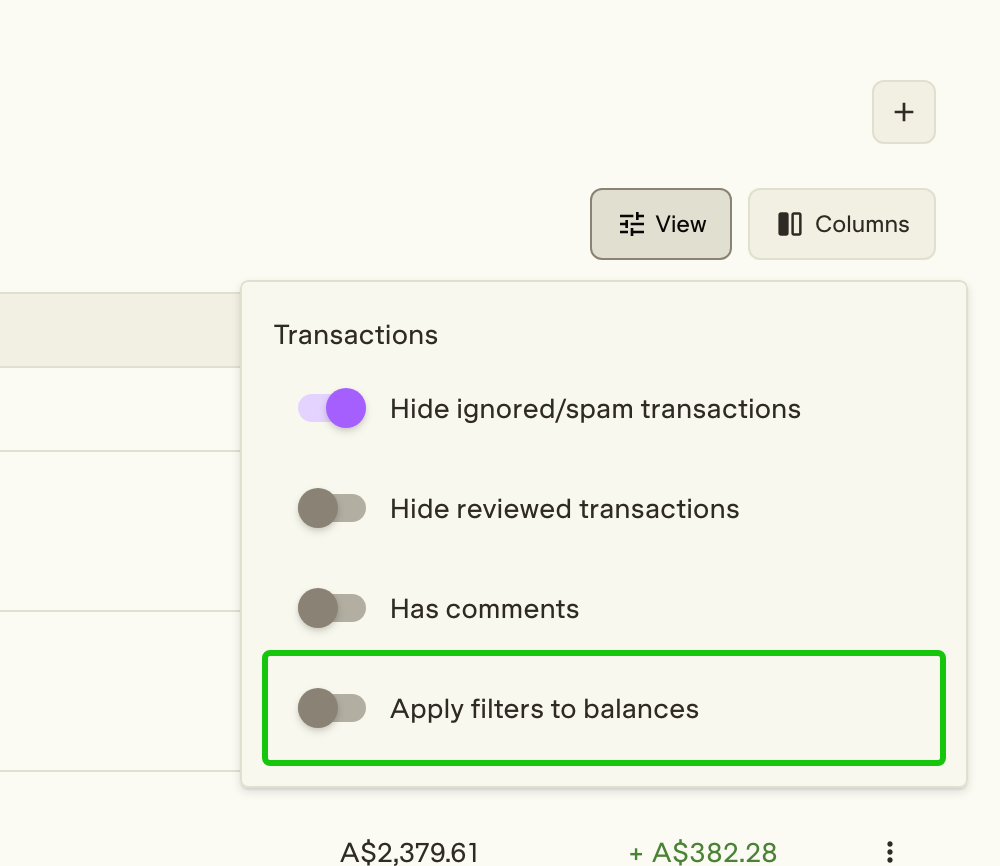
View holds switches that change the table without adding chips:
Hide ignored/spam transactions (on by default)
Hide reviewed transactions
Has comments
Apply filters to balances: when on, the Incoming, Outgoing, and Total balance columns are scoped to the filtered asset and account. When off, they show every currency on each row. Add those columns with Columns. More in Tracking Balances on the Ledger and Transactions Pages.
FAQ
I filtered on two categories but see no rows. Why?
You're probably on Match All, and a transaction only has one category. Switch the pill to Any, or tick both categories inside one Category chip instead of adding two chips.
Where did the Start date and End date filters go?
They're still there. Set both and Summ shows them as a single Date chip.
How many views can I save?
Ten. When you reach the limit, delete one to save another. Two saved views can't share a name.
Can I share a filtered view with my accountant?
Yes. The filter is part of the page address, so copying the URL from your browser and sending it opens the same view for anyone with access to the account.
Why don't I see the Type or Tag filter?
They belong to features your plan doesn't include. Type is part of business plans, and Tag is available on plans that include tags.
Good to know
Filters never change your data. They only change which rows you see. The bulk edit bar is the only place a filter leads to an edit.
The Ledger and running-balance views keep their own filters, separate from the Transactions table.
Still need help? Email [email protected].