
How to Bulk Edit Transactions
Bulk editing
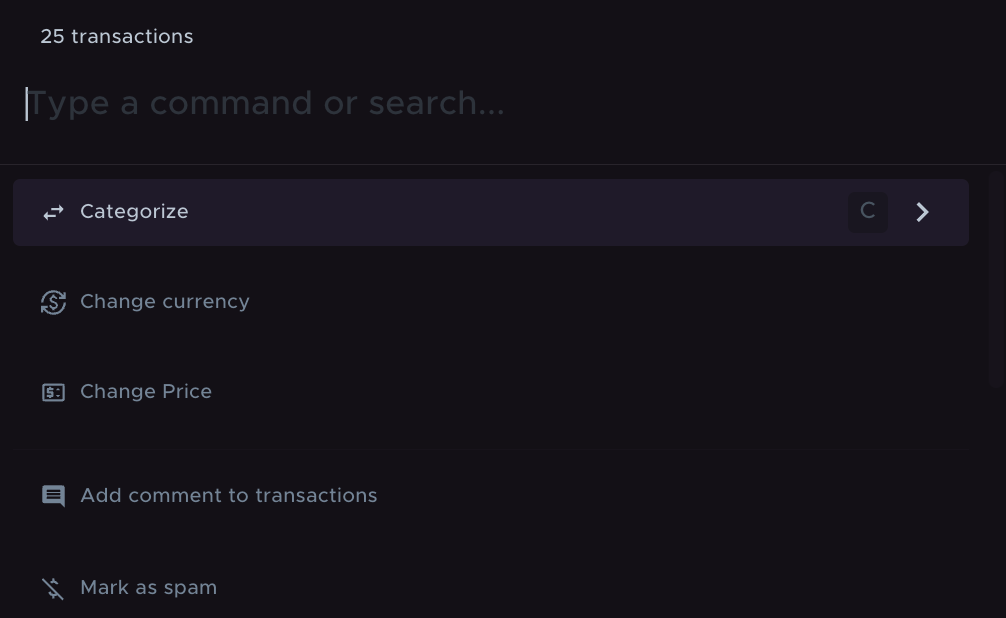
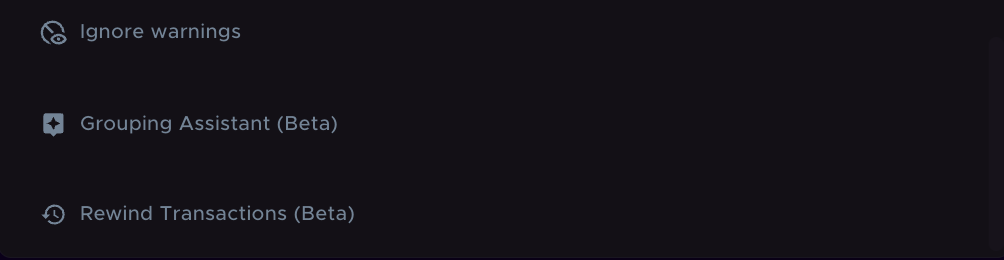
On the Transactions page, you can edit many transactions at once instead of one at a time. Bulk actions include:
Categorize
Change currency or fee currency
Change price or value
Add a comment
Mark as spam
Change the outgoing or incoming account
Ignore
Mark as reviewed
Look up market price
Reset to uncategorized
Delete
Ignore warnings
Grouping Assistant (Beta)
Rewind Transactions (Beta)
Some options only appear when they apply to your selection, such as merging, ungrouping, or tag actions.
How to select multiple transactions
Select individual transactions
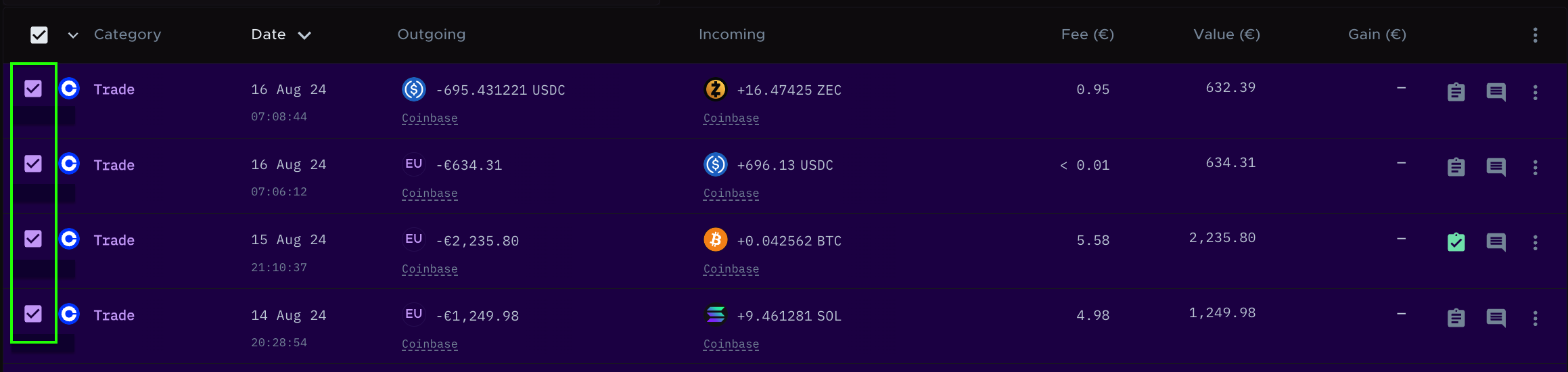
On the Transactions page, tick the box on the left side of each transaction you want to select.
Select filtered transactions
To select a certain type of transaction, filter for the transactions you want to bulk edit.

Then tick the box at the top left of the table to select all filtered transactions on the page.

If more matching transactions are on other pages, the bulk edit bar offers Select all transactions that match this filter. Use it to select every matching transaction at once, even ones that don't fit on the current page.

How to bulk edit transactions
When you select transactions, a bar appears at the bottom of the window.
To categorize, click Categorize or press C.
For all other actions, click Command, or press Cmd + K (Mac) or Ctrl + K (Windows).

These screenshots show the options in the command menu. Your list may include newer options.

Categorize
Grouped transactions, such as a trade, can be recategorized as another grouped category.
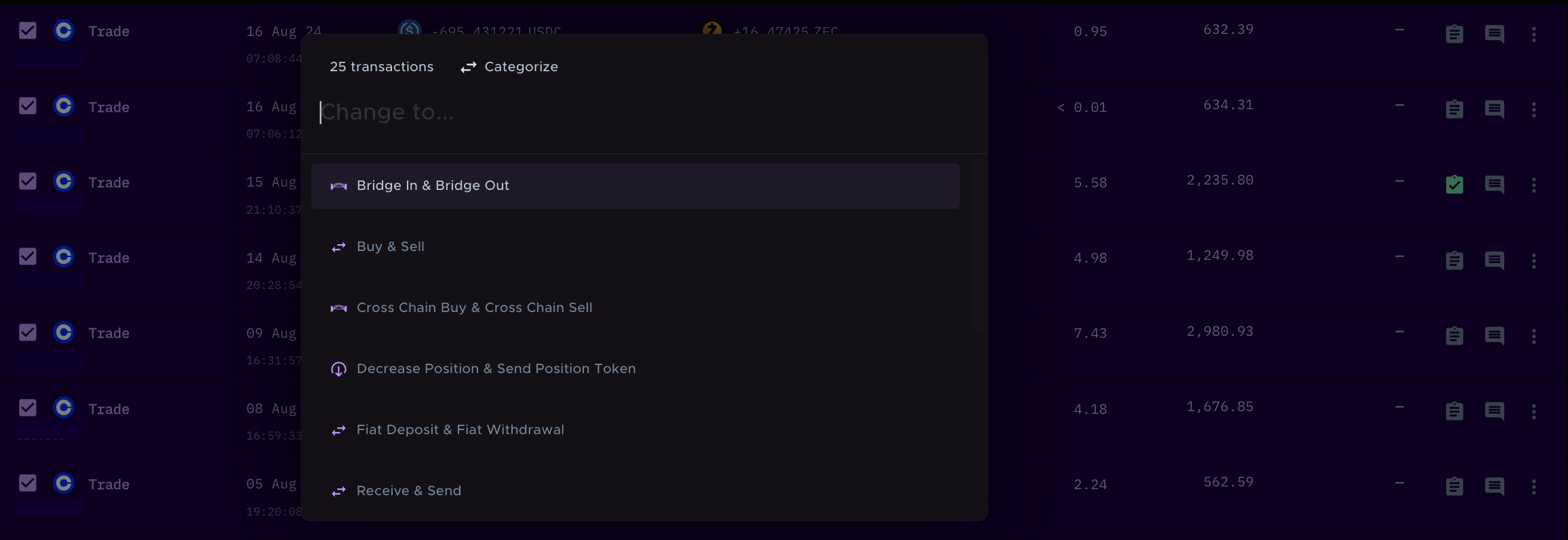
If you select transactions that all go one way, you can categorize them in that direction. For example, if you select only incoming transactions, you only see incoming categories.

To change the direction of the transactions, click the arrow.

You can then categorize them in the opposite direction (for example, from incoming to outgoing).
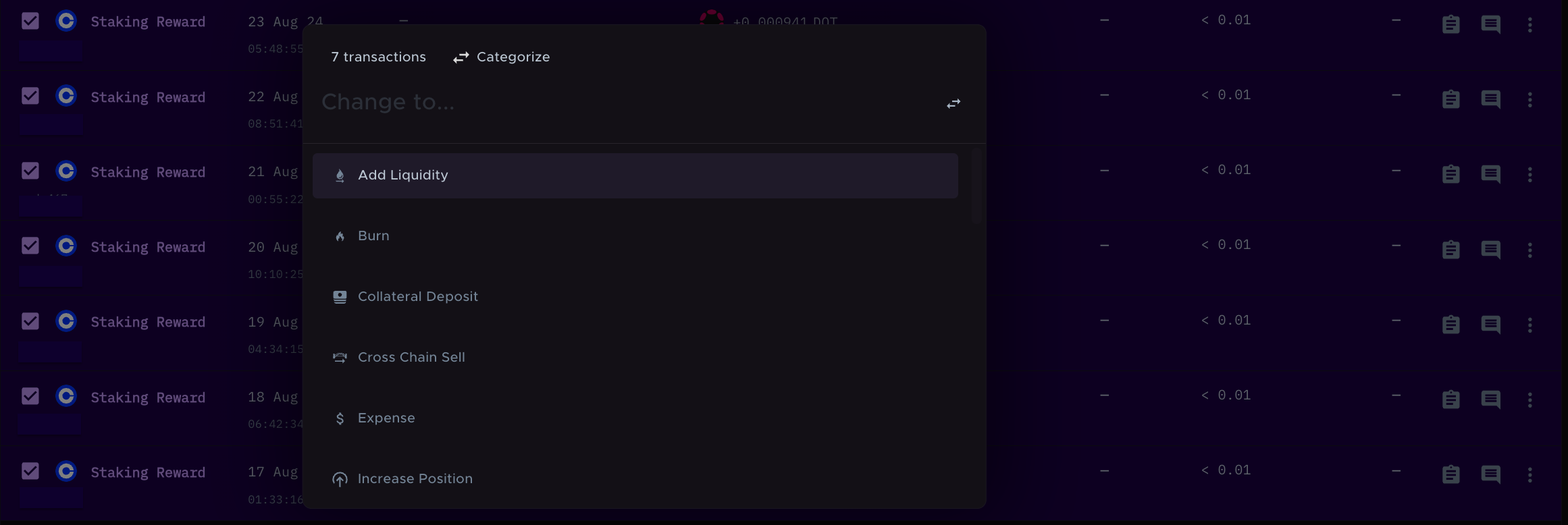
If you select both incoming and outgoing transactions, you can categorize both directions.
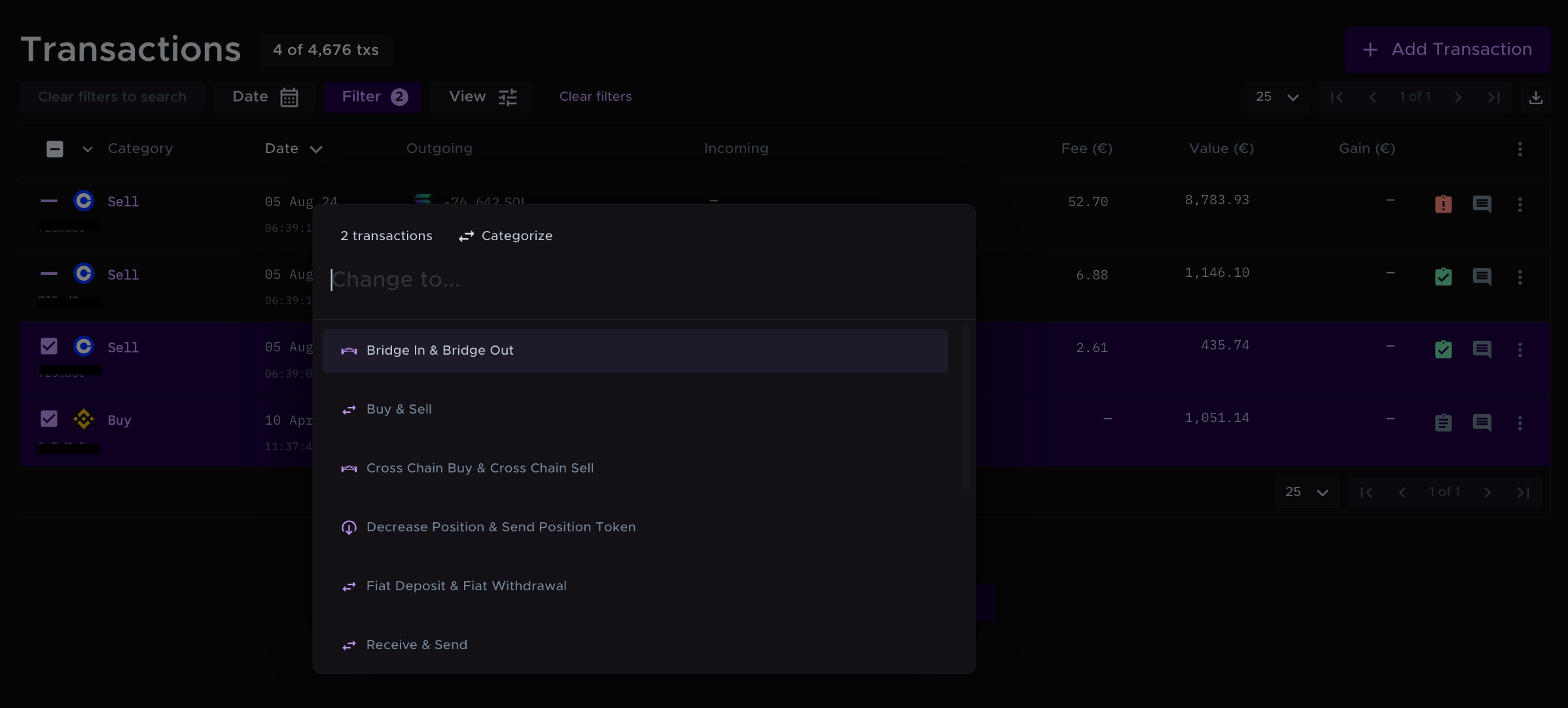
Change currency
Select the currency you want to change from.
Select the currency you want to change to.
Note: Changing the currency doesn't update the price. To apply the new currency's price:
Select the transactions you want to update.
Click Command or press Cmd + K (Mac) or Ctrl + K (Windows).
Select Look up market price.
Other actions
Change Price / Change Value | Change the price or value of the selected transactions. |
Change fee currency | Change the currency the fee was paid in. |
Add comment to transactions | Add the same comment to several transactions. |
Mark as spam | Like Ignore, this removes the transactions from tax calculations, but labels them as spam. |
Change Outgoing account | Change the outgoing exchange or wallet. |
Change Incoming account | Change the incoming exchange or wallet. |
Ignore | The transactions stay in the app but are left out of tax calculations. You can un-ignore them later. |
Mark as reviewed | Mark several transactions as reviewed. |
Look up market price | Fetch the market price. This overwrites the existing price and can't be undone. If a price isn't available, find the price and add it manually. |
Reset to uncategorized | Remove the category from the selected transactions. |
Delete | Permanently delete the transactions from your data. Note: This can't be reversed. Ignoring is usually the safer choice. |
Ignore warnings | Hide warnings on the transactions. Note: This doesn't fix the underlying issue. For example, if purchase history is missing, the warning goes away but the purchase history is still missing. |
Grouping Assistant (Beta) | Group individual transactions into a grouped transaction category. |
Rewind Transactions (Beta) | Revert transaction edits back to a specific date and time. Note: This only undoes changes made between now and the time you pick. It doesn't delete new or imported transactions, and it doesn't restore deleted ones. Only changes shown in each transaction's history tab are reverted. |
Related guides:
Still need help? Email [email protected].