
How to use Rules to categorize transactions automatically
A rule tells Summ to categorize transactions for you whenever they match conditions you choose. It covers the transactions you have today and everything that arrives in future imports and syncs. If you keep giving the same category to the same kind of transaction, a rule does it for you.
Rules are available on the Trader plan and above, including Business. On lower plans the Rules page isn't shown.
This article covers rules that set a transaction's category. If you have accounting software such as Xero or QuickBooks connected, rules can also map your chart of accounts. That is covered separately.
Where to find it
Open the Rules page from the main navigation. Each rule is a row showing its Name, its conditions under IF, and what it does under THEN.

Creating a rule
On the Rules page, click Add Rule.
Under IF, click Add condition and choose what the rule should match on, for example From, To, Account, Tx Currency, Blockchain, NFT Collection, or Tx Value. You can add several conditions and combine them with and / or.
Under THEN, choose the category you want applied.
Check the line that reads This rule will apply to N transactions, and click View to see exactly which ones. This is your safety check. A rule with conditions that are too broad will recategorize far more than you intended.
Give the rule a name that describes what it does, then click Save.

You can also create rules from other places:
On the Transactions page, when you categorize a transaction, choose the option to apply your choice to future transactions. Summ builds a matching rule for you.
From a specific wallet or exchange on the Accounts page.
From the Address Book.
By asking an AI assistant connected to your account.
When rules run
Summ applies your rules in the background. It starts as soon as you save a rule, and again after every import or sync. You don't need to open your reports or press anything.
Working through your transactions takes a moment, so the new categories appear shortly after you save. On a large account it can take longer.
How rules work together
Rules run from top to bottom. Row 1 runs first. You can reorder rules by dragging them up or down, or by using Move to top / Move to bottom from a rule's menu. New rules are added at the bottom, so they have the lowest priority until you move them.
The first matching rule wins. Once a rule has set a transaction's category, rules further down the list are skipped for that transaction, even if their conditions also match. Where two rules overlap, put the more specific one higher.
A rule categorizes a transaction once. Summ records which rule categorized each transaction, and rules don't revisit it later. If a rule categorized something you didn't intend, change those transactions with bulk edit. You can pick a new category, or use Reset to uncategorized to clear the category. If a rule still matches a transaction you reset, it may categorize it again when the report next updates, so edit or disable that rule first.
Editing, disabling, and deleting
None of these change the categories a rule has already applied. They change what the rule does from now on. Open a rule's menu from its row to find them.
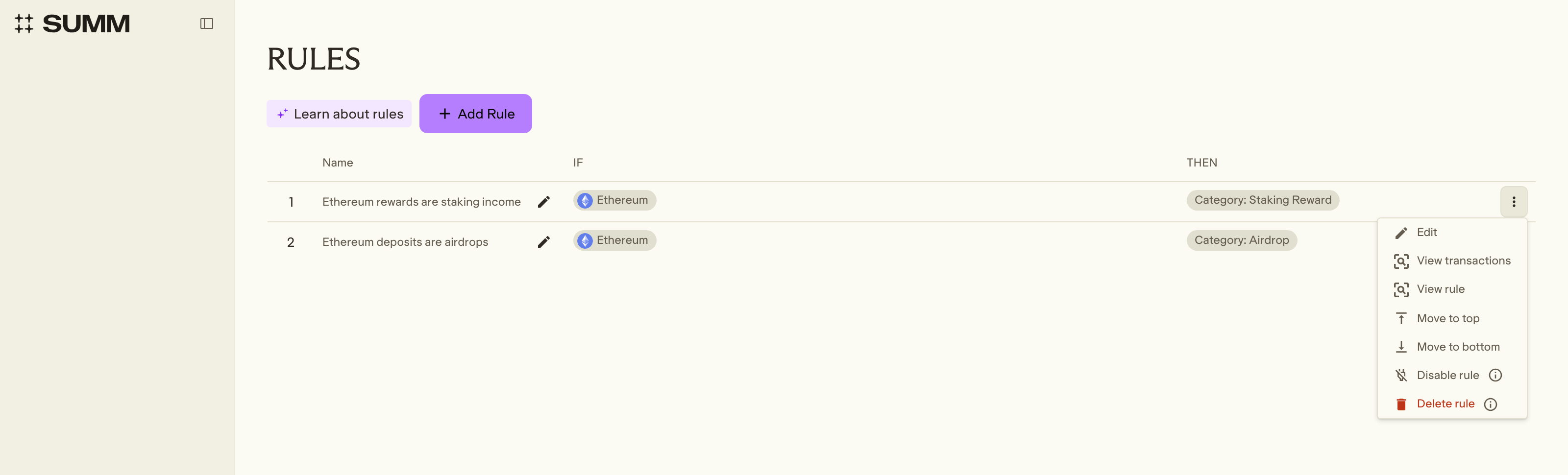
Edit: change the rule's conditions or category. This affects how it categorizes transactions from then on. Transactions it has already categorized keep their category.
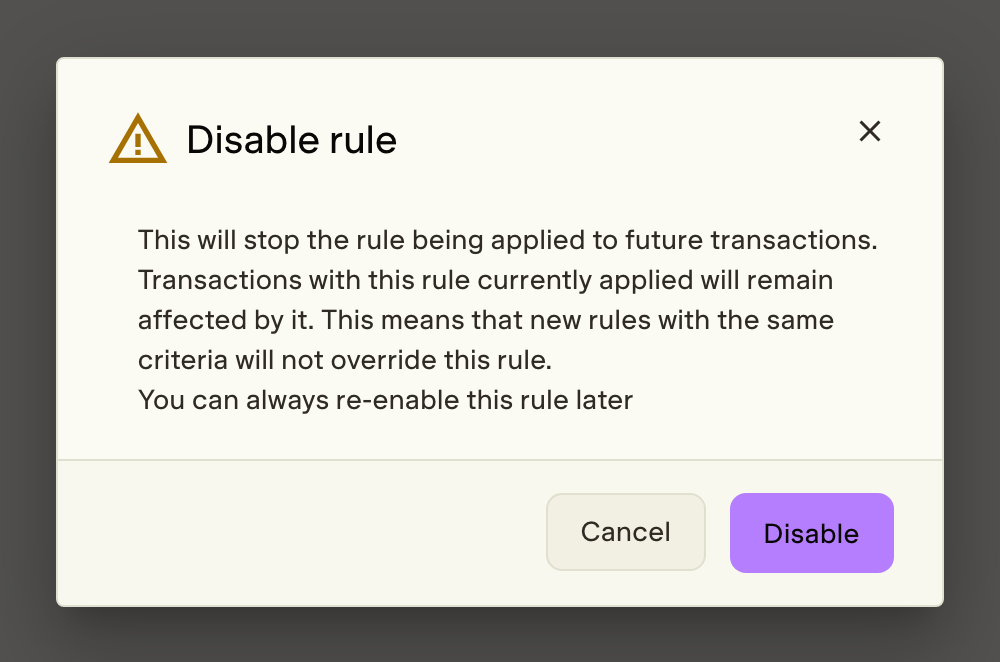
Disable: the rule stops applying to new transactions, but it is kept, along with the record of what it has already done, in case you want to enable it again. Re-enabling changes its position in the list, so check the order afterwards.
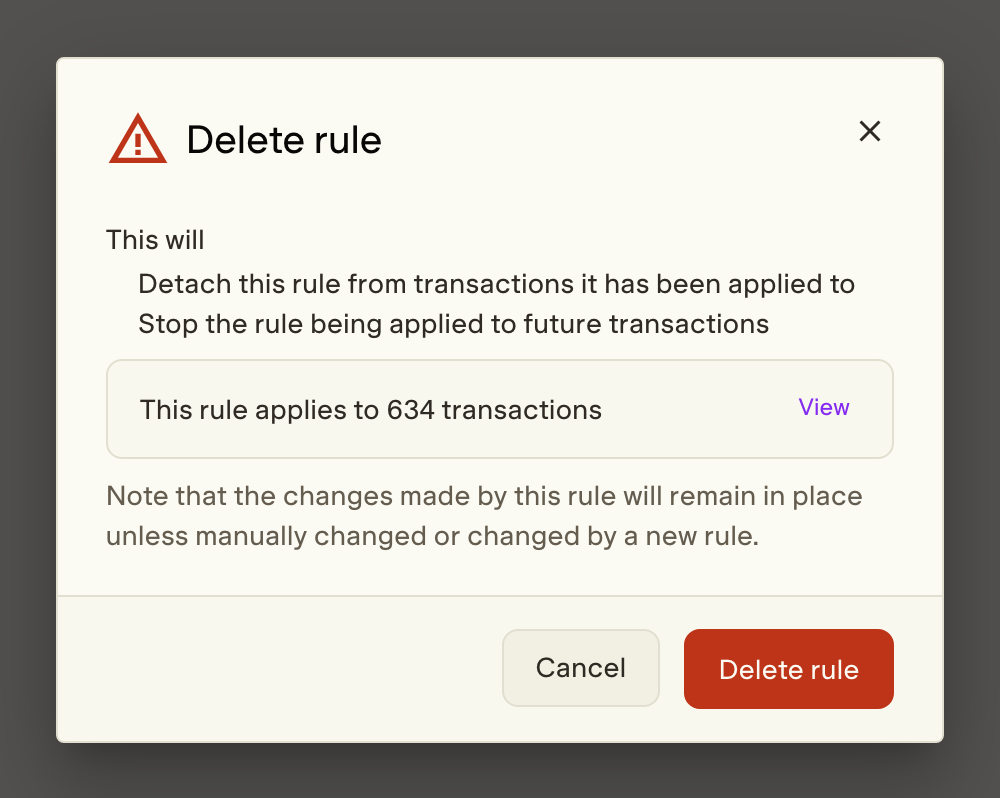
Delete: removes the rule. The transactions it categorized keep their categories.
What a rule can do
Set a category for every transaction that matches your conditions, now and in future.
Mark transactions as spam by choosing a spam category. Spam is directional, so you need one rule for incoming and another for outgoing.
Rules can't add tags, and can't select every transaction. A rule must narrow to a subset of your data before you can save it.
Rules and backups
Your rules are not included in a backup. A backup captures your transactions, your connected accounts and their sync history, and your address book. Restoring one brings your data back, but any rules you deleted in the meantime won't return, and you'd need to recreate them.
Because a restore replaces your transactions, review your Rules page afterwards. Your existing rules will categorize the restored transactions once the restore finishes.
Rules or bulk edit?
Use a rule when the intent is ongoing, for example "always treat transfers to this address as a contractor payment". Use bulk edit for a one-off tidy-up of transactions you already have. It applies straight away, doesn't keep running, and is how you change a category a rule has already set. Bulk edit is available on every plan.
FAQ
I saved a rule but nothing changed. Why?
Rules are applied in the background, so give it a little time to work through your transactions. If the categories still haven't changed, the usual reason is that a rule higher up the list already categorized those transactions, so the new rule is skipped for them.
Can I undo what a rule did?
Not in one step. Editing, disabling, or deleting the rule doesn't revert the categories it applied. To change them, select the affected transactions and use bulk edit to pick a new category or Reset to uncategorized. Edit or disable the rule first, or it may categorize the reset transactions again.
Will a rule overwrite a category I set by hand?
No. A category you set yourself isn't replaced by a rule later on.
If I restore a backup, do my rules come back?
No. Rules aren't part of a backup. Restoring brings back your transactions, accounts, and address book, but not your rules.
How many conditions can one rule have?
As many as you need, combined with and / or. A rule name can be up to 280 characters.
Can my accountant's plan give me rules?
No. Access follows the account the rule is written to. For an accountant-managed client, the client's plan needs to be Trader or above, not the accountant's own seat.
Can an AI assistant create rules for me?
Yes, if you've connected one to your Summ account. It asks you to confirm before creating anything, and it is instructed to show you how many existing transactions a rule would match first. See How to connect Claude, ChatGPT or another AI assistant to Summ (MCP).
Good to know
Check the match count before saving. The This rule will apply to N transactions line and its View button are the quickest way to catch conditions that are broader than you meant.
Order matters most where rules overlap. If two rules could apply to the same transaction, put the more specific one higher.
Still need help? Email [email protected].