
How to connect Claude, ChatGPT or another AI assistant to Summ (MCP)
The Summ MCP server lets you connect Claude, ChatGPT, or any other assistant that supports the Model Context Protocol (MCP) directly to your Summ account. Once connected, you can ask about your portfolio, track down reconciliation issues, connect wallets and exchanges, or pull tax figures from a conversation. It is available on every account, with no opt-in needed.
Where to find it
Open Settings and choose the MCP tab, or go straight to app.summ.com/accounts?settings=mcp. The MCP server setup panel shows step-by-step instructions for each assistant and the MCP URL you need, with a Copy button.
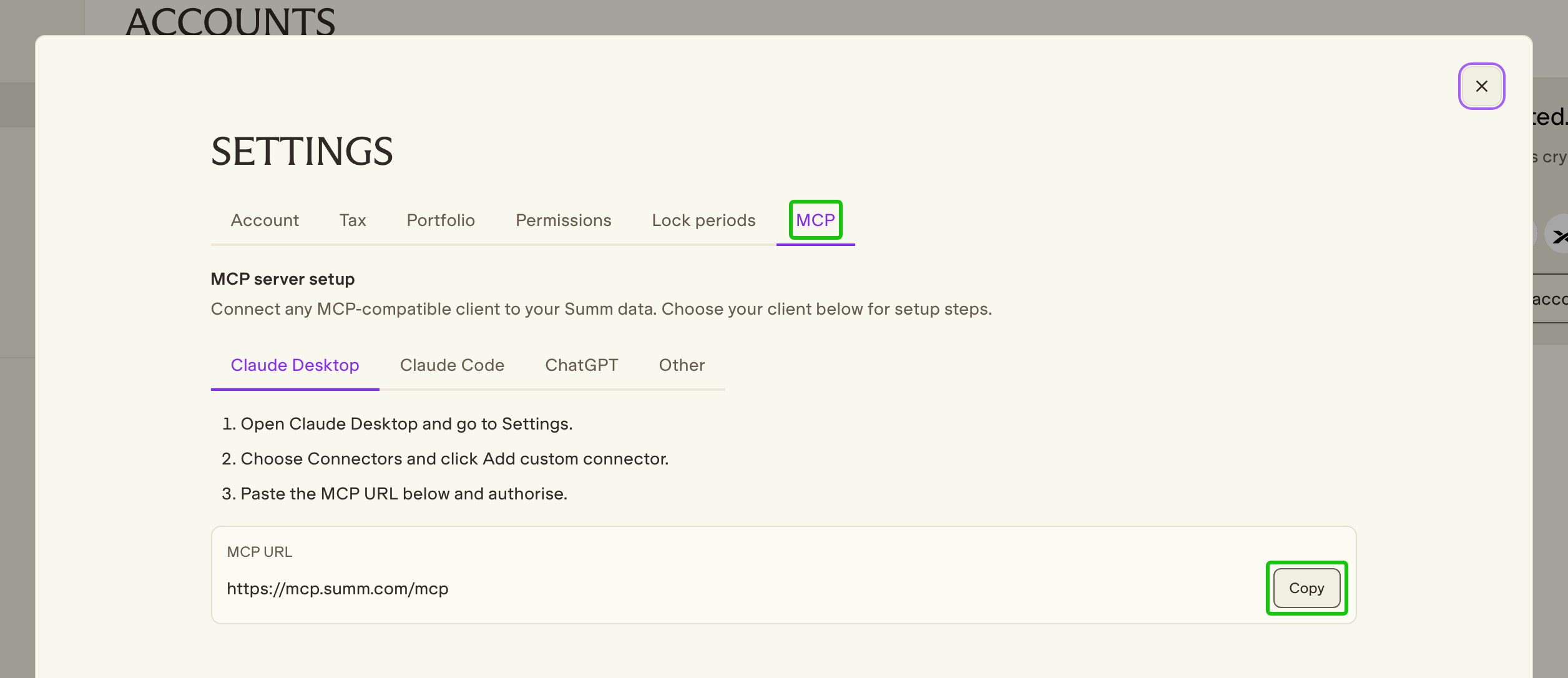
Connecting your assistant
Claude Desktop
Open Claude Desktop and go to Settings.
Choose Connectors and click Add custom connector.
Paste the MCP URL and authorize.
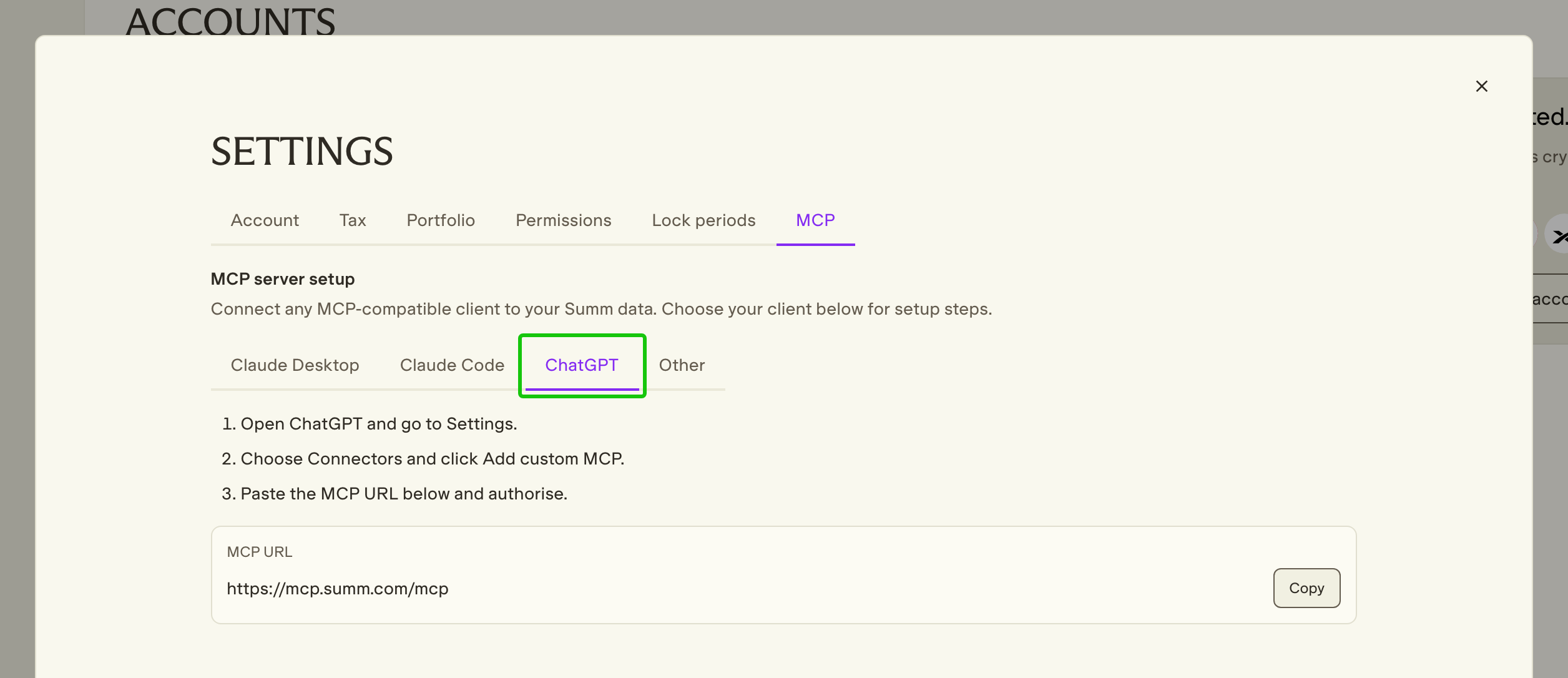
ChatGPT
Open ChatGPT and go to Settings.
Choose Connectors and click Add custom MCP.
Paste the MCP URL and authorize.
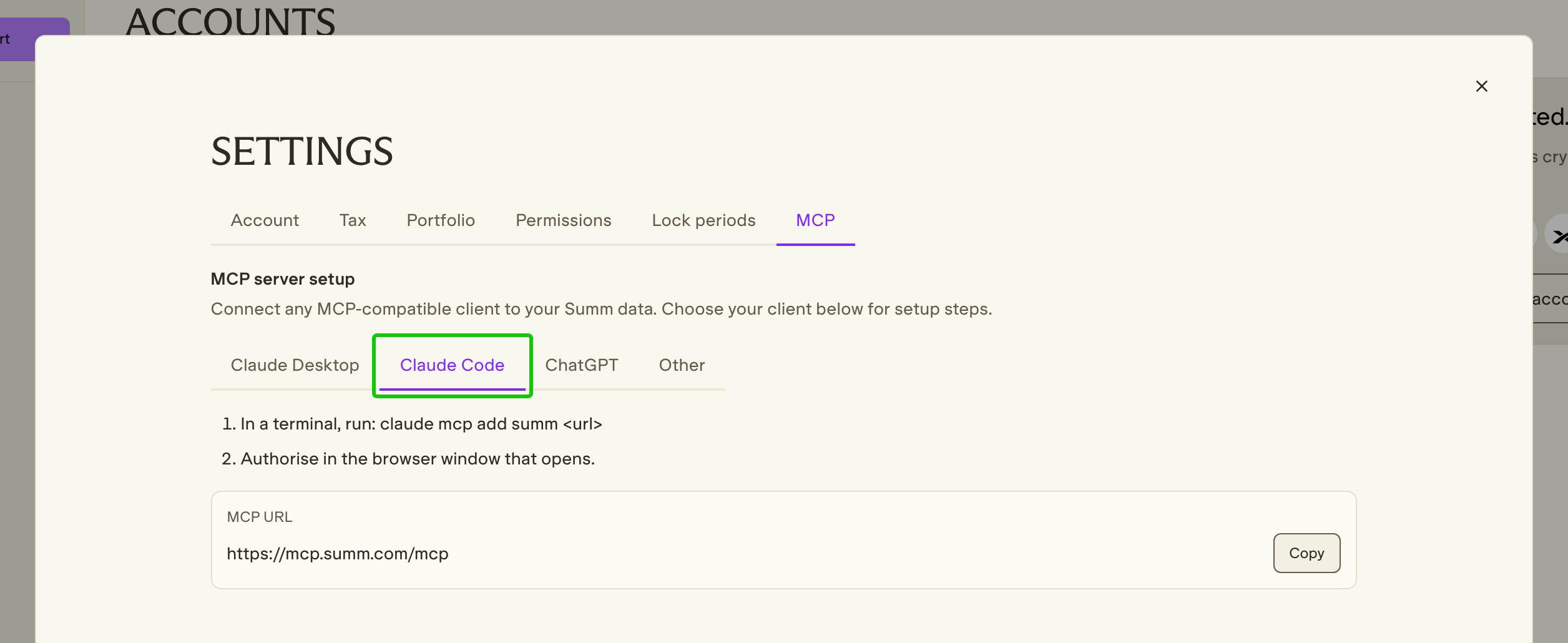
Claude Code
In a terminal, run:
claude mcp add summ https://mcp.summ.com/mcpAuthorize in the browser window that opens.
Other MCP clients
For Cursor and similar clients, paste the MCP URL into your client's MCP server settings, then follow its authorization prompt.
The authorization screen
When your assistant connects, Summ opens an Authorize access page in your browser. If you aren't signed in to Summ, you're asked to Log in to authorize access first. The page then shows:
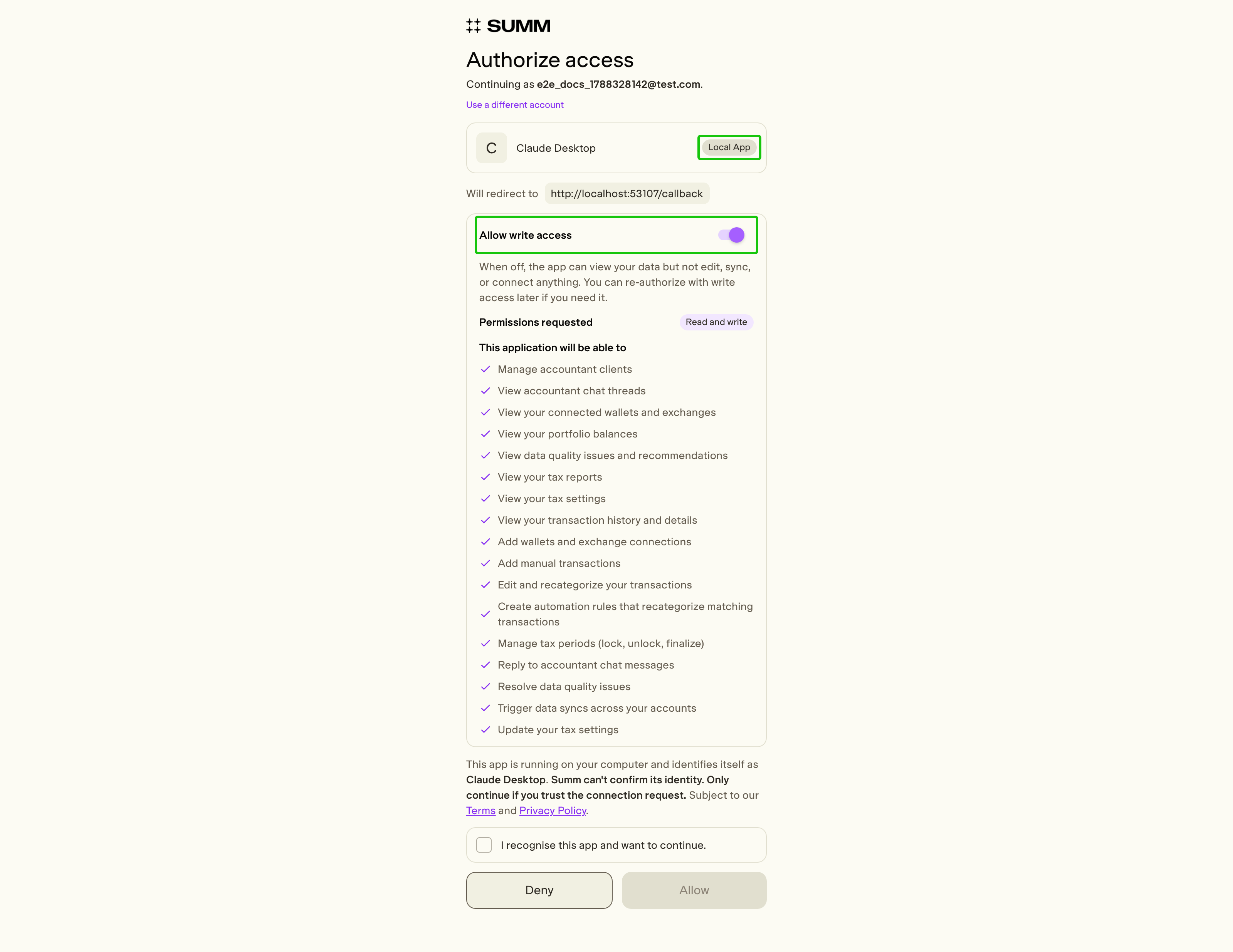
Requesting client: the name of the app asking for access, with a chip that shows how much Summ knows about it:
Recognised Provider: Summ recognizes the app's provider (currently Anthropic's claude.ai and OpenAI's chatgpt.com).
Local App: the app runs on your own computer. Claude Desktop, Claude Code, and Cursor all show as Local App. This is expected and isn't a warning about those apps. Summ can only see that the request came from your machine, so confirm you started the connection yourself.
Unrecognised Provider: an online app whose provider Summ doesn't recognize. Anyone can build an MCP client, so check that the name and redirect address match an app you actually use before you continue.
Access level: if the app asked for write access, you see an Allow write access switch. Turn it off to grant read-only access. The app can then view your data but can't edit, sync, or connect anything. You can authorize again with write access later if you need it.
Permissions requested: Read or Read and write, followed by the full list under This application will be able to.
For a Local App or Unrecognised Provider asking for write access, you also tick I recognise this app and want to continue before Allow is enabled.
Click Allow to finish, or Deny to cancel. Your assistant then completes the connection and you can go back to it.
What your assistant can do
With read access, the assistant can:
View your portfolio balances
View your transaction history and details
View your connected wallets and exchanges
View data quality issues and recommendations
View your tax reports
View your tax settings
With read and write access, it can also:
Add wallets and exchange connections
Add manual transactions
Edit and recategorize your transactions
Create rules that categorize matching transactions automatically, on plans that include Rules
Resolve data quality issues
Trigger data syncs across your accounts
Update your tax settings
Manage tax periods (lock, unlock, finalize)
Some things stay in the web app. Uploading CSV files, connecting exchanges that sign in with OAuth (such as Coinbase), and downloading report files aren't available through the assistant. When you ask for a report, it gives you a link to your Reports page instead.
For accountants and collaborators
If you manage clients, your assistant can also list your clients and work on a specific one. It is instructed to always confirm which client you mean before acting, and never to mix data between clients. If it seems unsure, tell it the client name.
FAQ
Is the MCP server included in my plan?
Yes. It is available on every Summ account, including Free. What the assistant can do mirrors your plan: anything you can't do in the web app on your plan isn't available through the assistant either. Report types your plan doesn't include, rules, and the tax-loss harvesting workflow all follow your plan.
How long does the connection last? Will I need to authorize again?
Your assistant's access refreshes automatically in the background while you keep using it, for up to 30 days at a time. If it stops working after a long break, reconnect and authorize again.
How do I disconnect an assistant?
Remove the Summ connector from your assistant's own settings (for example, Connectors in Claude Desktop or ChatGPT, or claude mcp remove summ in Claude Code). Once removed, the app can no longer refresh its access.
I chose read-only. Why can't the assistant make changes?
Read-only access means it can view your data but not edit, sync, or connect anything, and it will tell you so. To allow changes, remove the connector and reconnect, leaving Allow write access switched on.
Can the assistant delete my transactions or wipe my data?
No. Bulk edits through the assistant can't delete transactions, and edits it makes can be undone, either by asking it to undo or from the transaction's Edit History in the web app.
My assistant says Summ MCP is turned off
Summ can temporarily switch the MCP server off. Your assistant stays connected but has no tools until it's back, and it re-checks automatically about once an hour. You can check the status under Settings > MCP, which shows Summ MCP is currently turned off while it's unavailable.
My assistant keeps getting errors about invalid arguments
Assistants remember Summ's tool details from when they connected, and those can go out of date. Remove and re-add the Summ connector, then start a new conversation.
My assistant says it is making "too many requests"
The server allows 300 requests a minute, and 60 in any 10-second burst. Wait a few seconds and try again. The assistant's message tells you how long.
Good to know
The authorization page can't be faked by a link. The app name, redirect address, and requested permissions come from Summ's own server, not from the link that opened the page.
Recognised Provider is based on where the app sends you back to: a secure claude.ai, claude.com, or chatgpt.com address. Apps on your own computer are always labeled Local App.
Changes are real. Anything the assistant edits, syncs, or connects with write access applies to your account exactly as if you did it in the web app.
Still need help? Email [email protected].