SoftLedger Integration
Last updated: November 13, 2026
Connect Summ to SoftLedger and your categorized crypto transactions sync into SoftLedger as journal entries, so your crypto activity sits in the same books as the rest of your business. No manual journal entry and no spreadsheets.
What you'll need
A Summ Business Plan. Accountants can connect SoftLedger for any client on the Business Plan.
SoftLedger API key access enabled for your subscription. SoftLedger shows the API secret only once when you create the key, so copy and store it securely. See SoftLedger’s API key guide.
A SoftLedger API key and secret with these permissions:
create:LedgerAccountcreate:JournalEntrydelete:JournalEntrylist:LedgerAccountslist:Locations
To create one, in SoftLedger go to Admin > API Keys in the sidebar, create a key with the five permissions above, and copy the key and secret.
Where to find it
In Summ, open Account mapping in the left sidebar. The page lists your accounting software under Connect your accounting software.
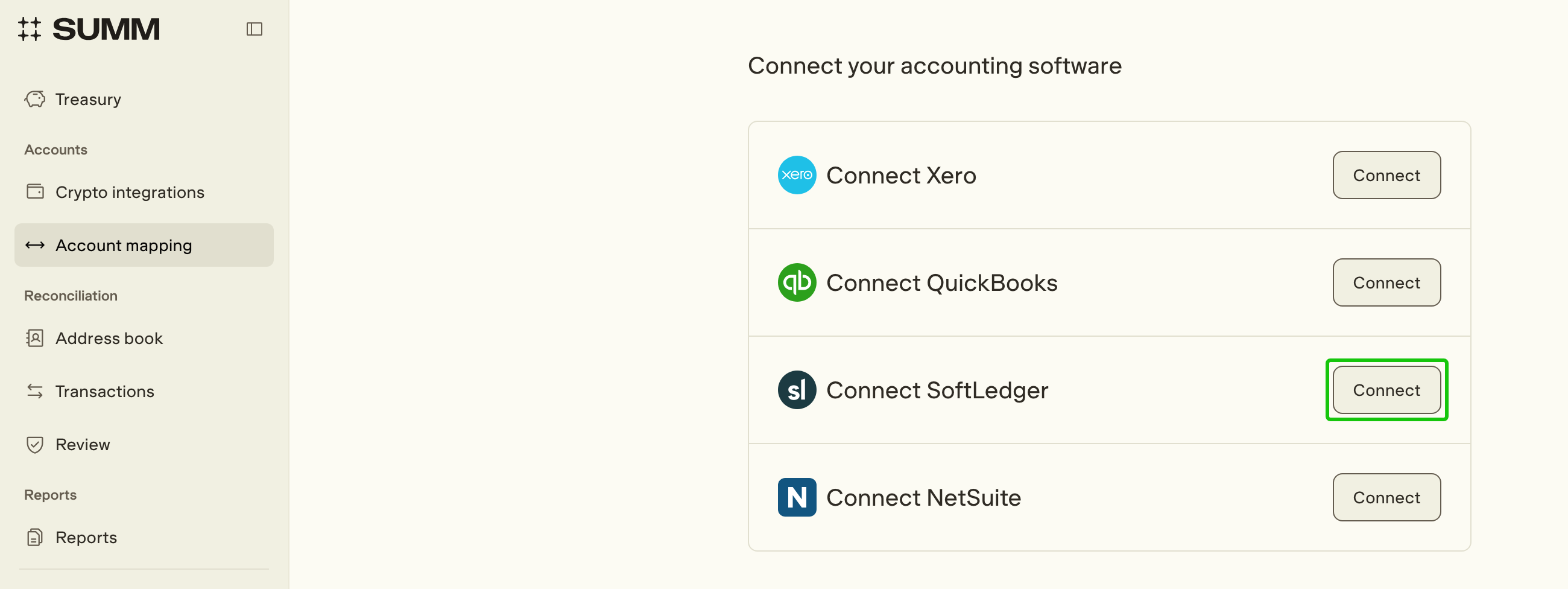
Connect SoftLedger
Next to Connect SoftLedger, click Connect. The Connect SoftLedger window opens.
Choose the Region where your SoftLedger account is hosted: Global (excluding Europe) or Europe.
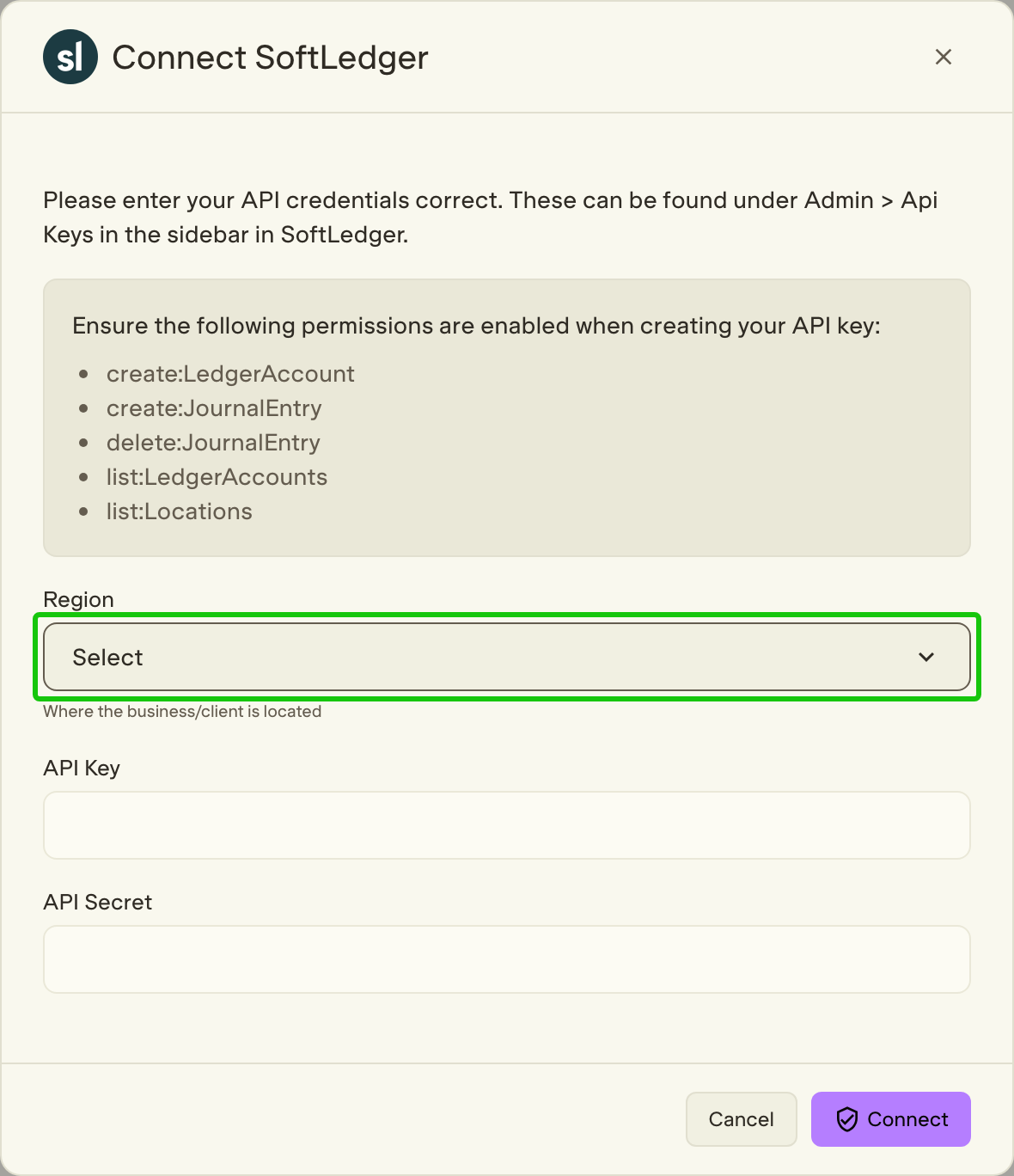
Paste the API Key and API Secret.
Click Connect. When you see Connection successful, click Continue.
Summ selects your first SoftLedger location automatically. Check the one shown on the SoftLedger connection card, and pick a different one from the dropdown if needed.
Map your accounts
After connecting, the Default chart of accounts mapping page opens. Map Summ's default accounts to accounts in your SoftLedger chart of accounts.
Five accounts are required: Cash, Fee, Realized gain, Realized loss and Missing purchase history. Transactions can't sync until all five are mapped.
Summ account | What it's for |
Cash account (required) | The cash side of each trade. When you sell crypto, the proceeds land here, and the reverse when you buy. Crypto-to-crypto trades net to zero. We recommend a dedicated clearing (suspense) account, not your digital-asset account. |
Fee account (required) | Fees paid on transactions. |
Realized gain account (required) | Gains from disposing of crypto. |
Realized loss account (required) | Losses from disposing of crypto. |
Missing purchase history account (required) | Balances the journal when you received an asset without paying for it (for example an airdrop). Summ uses market value as its cost basis. |
Assets account | The value of the crypto you hold. |
Expense, Income, Loan and Loss accounts | Crypto spent on expenses, crypto income, crypto loans and repayments, and crypto that was lost. |
If you add accounts in SoftLedger later, click Refresh account list to see them in Summ.
Choose export settings
Rollup settings: how to group journal entries. No rollup sends one journal per transaction, Day one per day, and Month one per month.
Allow transactions with warnings to sync: warnings do not block sync by default. Turn this off if you want every warning on a transaction to be resolved before it can sync.
Sync transactions to SoftLedger
Go to the Transactions page.
Use the sync filters in the sidebar under Transactions: Synced, Ready to sync, Not ready to sync, Out of date and Failed.
To sync one transaction, click its sync button (Sync to SoftLedger). To sync many, select them and choose Sync to SoftLedger.
Summ creates draft journal entries in the selected SoftLedger location, following your mappings and rollup settings.
Disconnect SoftLedger
Open the menu on the SoftLedger connection card and choose Remove connection, then Disconnect. Your account mappings are removed, so you'll need to map them again if you reconnect.
Frequently asked questions
Which region should I pick? The region where your SoftLedger account is hosted. Pick Europe for a SoftLedger account hosted in Europe, and Global (excluding Europe) for everywhere else. The wrong region stops the connection from working.
Which SoftLedger location do my journals go to? The location shown on the SoftLedger connection card. Summ picks the first one when you connect, and you can change it from the dropdown.
I changed a transaction after syncing it. What happens in SoftLedger? The transaction shows as Out of date. Sync it again to update SoftLedger.
What if a period is locked in Summ? Summ skips transactions in locked periods when resetting or unsyncing. Syncing can still send journals for transactions in locked periods.
The connection failed. What should I check? Summ shows "Error connecting to accounting integration" for any connection problem. Check that:
The region matches where your SoftLedger account is hosted.
The API key has all five permissions listed under What you'll need.
The key and secret were pasted in full, with no extra characters.
Good to know
This integration is exclusive to the Business Plan.
Set up your SoftLedger chart of accounts before mapping.
Reconcile in Summ first, then sync, so your books stay accurate.