
Summ Business Plan Overview
The Summ Business Plan is built for businesses and finance teams with high-volume crypto activity. It adds accounting software integrations, rule-based categorization, bulk editing and syncing, and treasury tracking on top of Summ's standard features.
Is the Summ Business Plan right for you?
The Business Plan suits accounting firms and finance teams that need accurate, efficient crypto accounting. It's a good fit for:
Firms managing large volumes of business crypto transactions.
Businesses that want transaction imports and categorization automated.
Teams using Xero, QuickBooks Online, or SoftLedger that need their crypto activity synced to their books. NetSuite is also supported, but may not be available on every account yet.
Teams that want to cut manual work with rules and bulk editing.
How to access the Business Plan
You can set up a Business Plan client through the Accountant Portal:
Sign up for an accountant account for free.
Add a new client on your My Clients page.
Go to Client settings > Plan > Business.
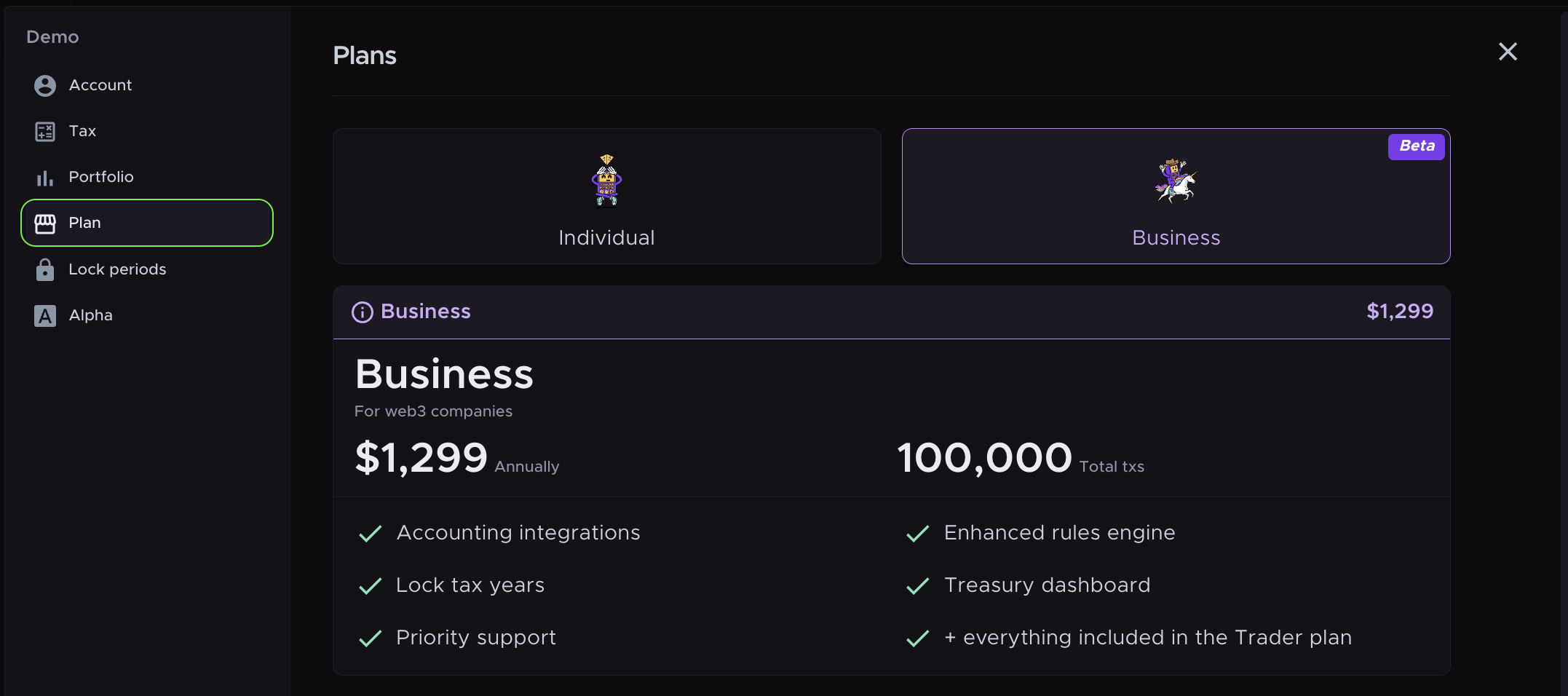
Upgrade once you've confirmed it's what you need.
To upgrade an existing client, go to Client settings > Plan > Business and select the Business Plan.
Note: Business plans aren't available in India.
Key features
The Summ Business Plan includes all of Summ's standard features, plus tools built for crypto accounting:
Feature | Description |
Accounting software integrations |
|
Rule-based categorization |
|
Bulk editing and syncing |
|
Roll-up and treasury tracking |
|
Client management |
|
Getting started with the Summ Business Plan
Step | Action |
1. Upgrade to the Business Plan | Upgrade your client by following these steps. |
2. Import client data |
|
3. Connect your accounting software |
|
4. Set up rules and the Address book | Address book
Rules Use rules to automate categorization and account mapping:
You can create rules from several places:
You can change rule priority or enable and disable rules as needed. For details, click Learn about rules on the Rules page, or see How to use Rules to categorize transactions automatically. |
5. Review and reconcile transactions |
|
6. Generate reports |
|
FAQs
What's the quickest way to get through the work?
Label addresses in the Address book to improve categorization.
Set up rules for recurring transactions.
Use bulk editing to change many transactions at once.
How do I handle unidentified addresses in my Address book?
If you have many unidentified addresses:
Click Export unidentified addresses CSV to download the file.
Label the addresses in the CSV.
Re-import the updated CSV into Summ.
For a few addresses, label them directly in the app.
Can I turn a categorized transaction into a rule?
Yes. When you categorize a transaction, the category applies to similar existing transactions by default. To make it a rule for future transactions too, tick Apply to future transactions.
How are rules prioritized?
Rules run top-down, and higher rules take priority. Disabled rules keep what they've already applied but are ignored for new transactions.
What happens if a transaction matches several rules?
Summ applies only the highest-ranked rule to that transaction.
How does roll-up work?
Roll-up combines transactions into one daily or monthly journal entry to reduce clutter in your accounting software.
When should I push my Summ transactions to my accounting software?
After you've reconciled them in Summ. This keeps your accounting records accurate.
What does "Out of date" mean?
A transaction shows as Out of date when it changed in Summ after it was synced to your accounting software. Resync these transactions to keep your records current. You can resync them in bulk from the Transactions page.
Do I need to clean up previously synced transactions in my accounting software after making changes in Summ?
No. Click Resync on the Transactions page and Summ updates the changes in your accounting software.
What's the difference between deleting and disabling a rule?
Disable rule
The rule doesn't apply to future transactions.
What it has already applied stays, and won't be overwritten by other rules.
Delete rule
The rule doesn't apply to future transactions.
What it has already applied can be overwritten by other rules.
Neither deleting nor disabling a rule undoes its effects.
Do inflows and outflows on the Treasury page include all transactions?
No. Buy and sell legs within a trade are left out of inflows and outflows. Transfers aren't counted either, because ownership doesn't change.
What if there's a sync error?
Check the transaction's history for error details. If the error persists, reconnect your accounting software and resync.
Why isn't my transaction syncing or mapping correctly?
Make sure all account mappings are complete, because unmapped transactions won't sync. Click Refresh account list to pick up changes from your accounting software. If the issue persists, reconnect your accounting software and remap the accounts.
Still need help? Email [email protected].