
Xero Integration
Connect Summ to Xero and sync your categorized crypto transactions as journal entries.
How to use the Summ + Xero integration
If you're on a Summ Business Plan, you can connect Summ to Xero, a cloud-based accounting platform.
The integration exports your categorized crypto transactions from Summ into Xero as journal entries, so you don't have to enter them by hand.
What you'll need
A Summ Business Plan
A Xero account with access to the organisation you want to connect
Why use Summ with Xero?
Summ imports, categorizes, and manages your crypto activity. Xero handles your wider financial reporting and accounting.
Summ manages the crypto-specific bookkeeping.
Xero handles broader financial and tax accounting.
How to sync Summ with Xero
1. Import and categorize transactions in Summ
Start by importing your crypto transactions into Summ. Summ recognizes common transaction types such as:
Trades
Income
Mining
Staking rewards
You can categorize transactions manually as needed so they're accurate before you export them.
2. Connect Summ to Xero and map accounts
Once your transactions are categorized:
Open Account mapping in the Summ sidebar.
Next to Connect Xero, click Connect.
Follow the prompts to authorize the integration and link your client's Xero organisation.
After connecting, map Summ's default accounts to your Xero chart of accounts. Five accounts are required: Cash, Fee, Realized gain, Realized loss, and Missing purchase history. Transactions can't sync until all five are mapped.
Default account mappings
Summ account | What it's for |
Cash account (required) | The cash side of each trade. When you sell crypto, the proceeds land here, and the reverse when you buy. Crypto-to-crypto trades net to zero. We recommend a dedicated clearing (suspense) account, not your digital-asset account. |
Fee account (required) | Fees paid on transactions. |
Realized gain account (required) | Gains from disposing of crypto. |
Realized loss account (required) | Losses from disposing of crypto. |
Missing purchase history account (required) | Balances the journal when you received an asset without paying for it (for example, an airdrop). Summ uses market value as its cost basis. |
Assets account | The value of the crypto you hold. |
Expense, Income, Loan, and Loss accounts | Crypto spent on expenses, crypto income, crypto loans and repayments, and crypto that was lost. |
These mappings make sure exported data lands in the right Xero accounts. If you add accounts in Xero later, click Refresh account list to see them in Summ.
3. Choose export settings
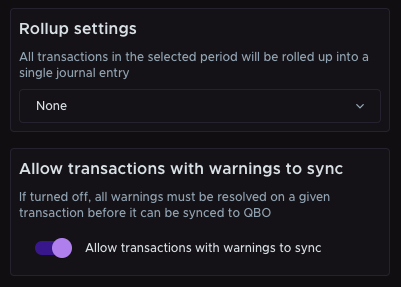
Before syncing, choose how your data is exported:
Rollup: choose how to bundle journal entries:
No rollup: export every transaction as its own journal
Day: roll up all transactions on a calendar day into one journal
Month: roll up all transactions in a calendar month into one journal
Allow transactions with warnings to sync: on by default. Turn it off to require every warning on a transaction to be resolved before it can sync to Xero.
4. Export transactions to Xero
Once your mappings and settings are set up:
Go to the Transactions page in Summ.
Use the sync filters to review transaction statuses:
Synced: already exported to Xero
Ready to sync: categorized, mapped, and ready to export
Not ready to sync: can't sync because a mapping is missing
Out of date: synced before but changed in Summ since. This happens when you edit an exported transaction, or make a change that affects its cost basis. Sync it again to update Xero.
Failed: the sync failed. Retry it.
For a single transaction:
Click into it and select Chart of Accounts.
Assign the right account for each asset.
Click Sync to Xero on the right side of the transaction.
To export in bulk:
Select multiple transactions.
Use the bulk tools to apply mappings and sync them all at once.
Summ then creates the journal entries in Xero, based on your mappings and grouped by your rollup setting.
Important reminders
This integration is only available on the Business Plan.
Set up your Xero chart of accounts before mapping.
Sync regularly to keep both systems up to date.
For an overview of Business Plan features, see Summ Business Plan Overview.
Still need help? Email [email protected].