
How to Edit Transactions
This guide explains how to edit a single transaction in Summ. To edit several transactions at once, see How to Bulk Edit Transactions.
Note: Editing transaction details can change your balances and calculations. If you're unsure about a change, check with a tax professional.
How to edit transaction details
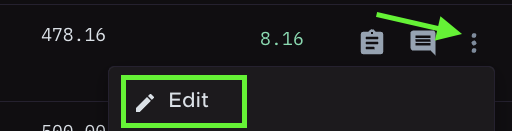
Click the three vertical dots (kebab menu) on the right side of the transaction.
Select Edit.

The edit drawer opens. Update the transaction details you need.
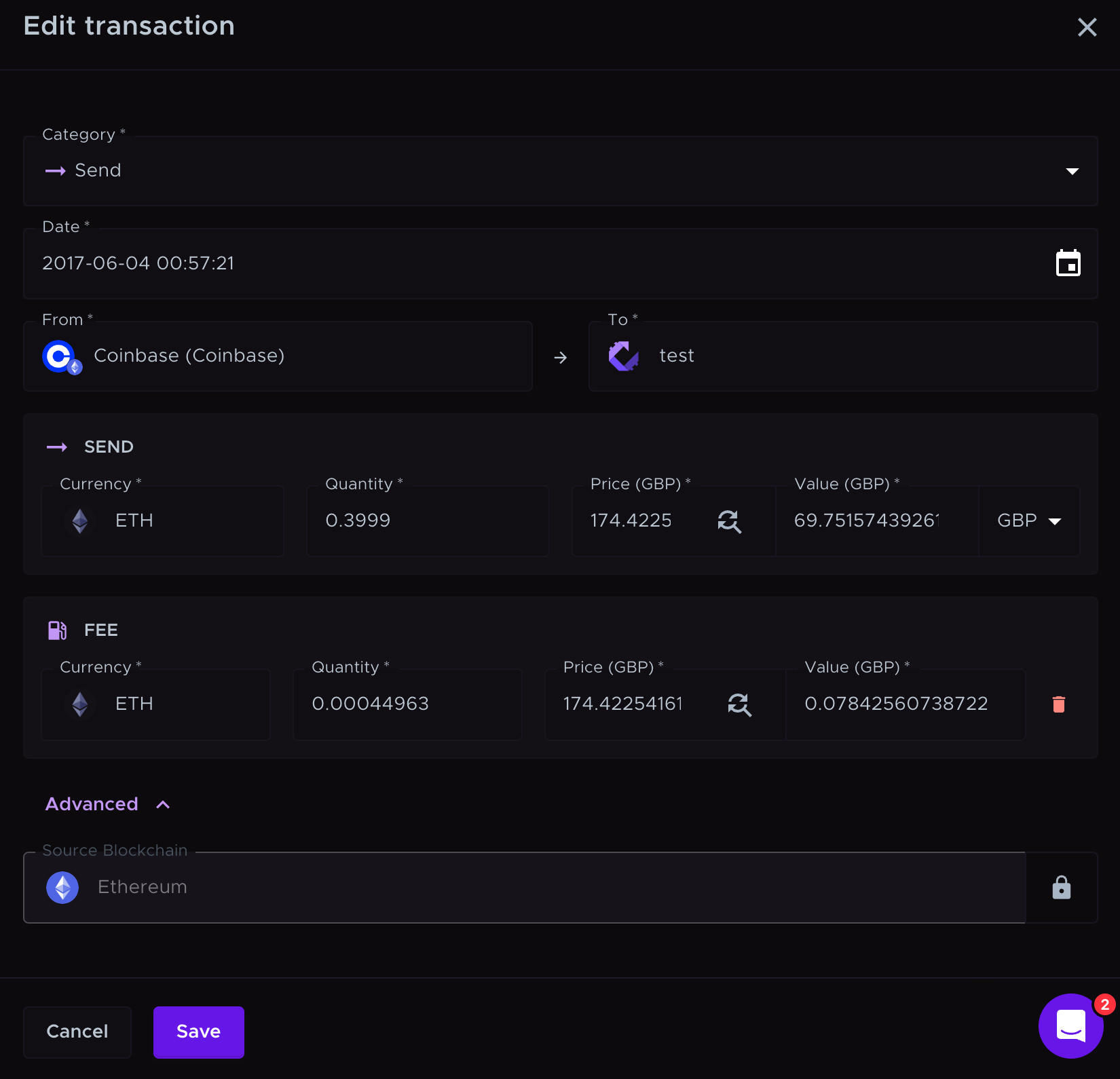
Click Save to apply your changes.

Editable transaction details
Transaction detail | Description |
The type of transaction, such as Buy, Sell, or Income. | |
Date | The date and time the transaction happened, adjusted to your timezone setting. Use the format yyyy-mm-dd hh:mm:ss. |
From (source account) | The wallet or exchange account the asset came from. |
To (destination account) | The wallet or exchange account the asset was sent to. |
Currency | The asset in the transaction, fiat or crypto (for example, AUD, BTC, ETH). |
Quantity | The amount of the asset in the transaction. |
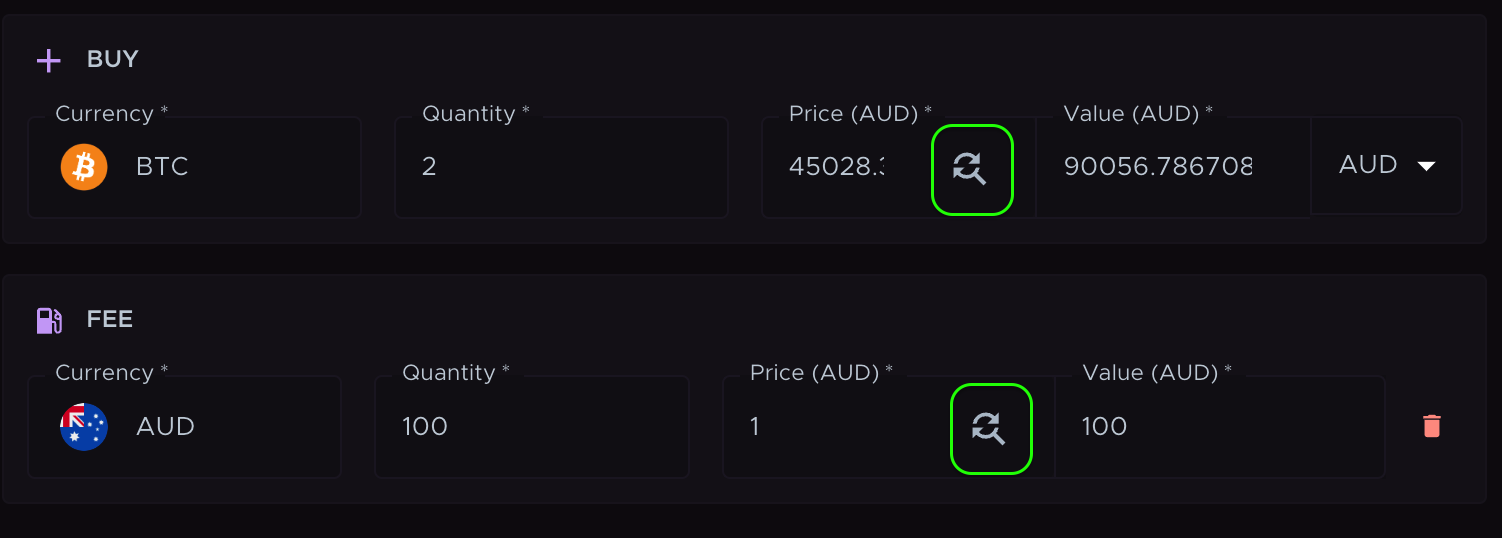
Price (selected currency) | The price of the asset at the time of the transaction. Click the magnifying glass icon to look up the market price. |
Value (selected currency) | The total value, calculated as quantity × price. You can also enter the value and Summ calculates the price. |
Currency used for price and value | The currency used to show the price and value. Options are USD, ETH, your local currency, and the native token of the transaction's blockchain. |
Fee currency | The currency used to pay the fee (for example, ETH for gas fees). |
Fee quantity | The amount of the fee, in the fee currency. |
Fee price (local currency) | The price of the fee currency in your local currency at the time of the transaction. Click the magnifying glass icon to look up the market price. |
Fee value (local currency) | The total fee value, calculated as fee quantity × fee price. You can also enter the value and Summ calculates the price. |
Source Blockchain | The blockchain the transaction happened on (for example, Ethereum, Bitcoin). You can only pick supported blockchains you have already imported. |
How to look up the market price
To look up the market price for a transaction or fee, click the magnifying glass icon.
How to change the direction of a transaction
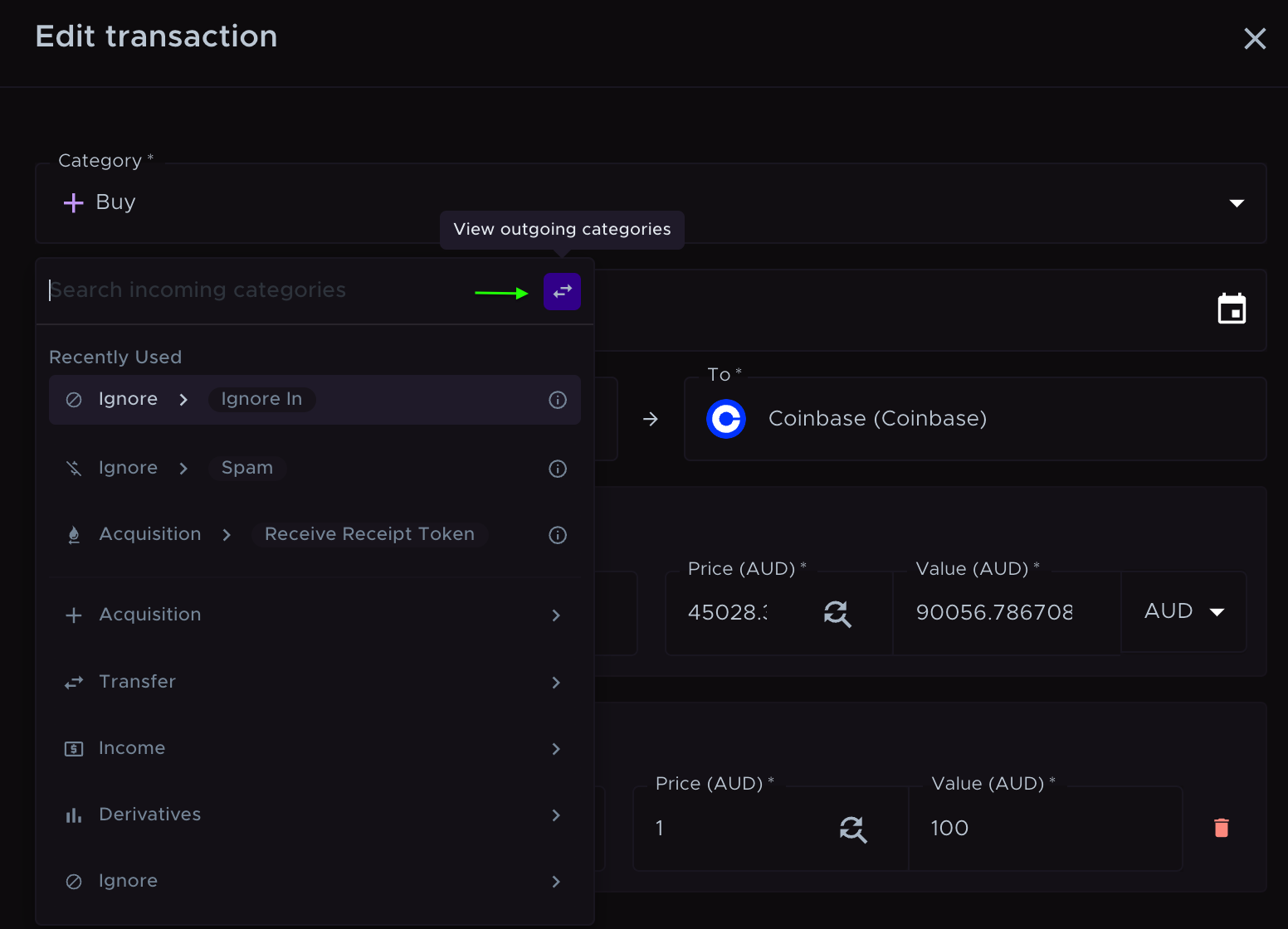
To switch a transaction between incoming and outgoing (for example, from send to receive, or from bridge in to sell), click the arrow icon. Then select the right category for the transaction.
How to assign or edit the blockchain
To edit the blockchain, click Advanced, click the padlock icon to unlock the blockchain field, and select the blockchain.
You can only pick supported blockchains you have already imported. For example, Ethereum only appears if you have added an Ethereum wallet on the Accounts page.

Editing shortcuts
You can edit some details directly from the transaction row.
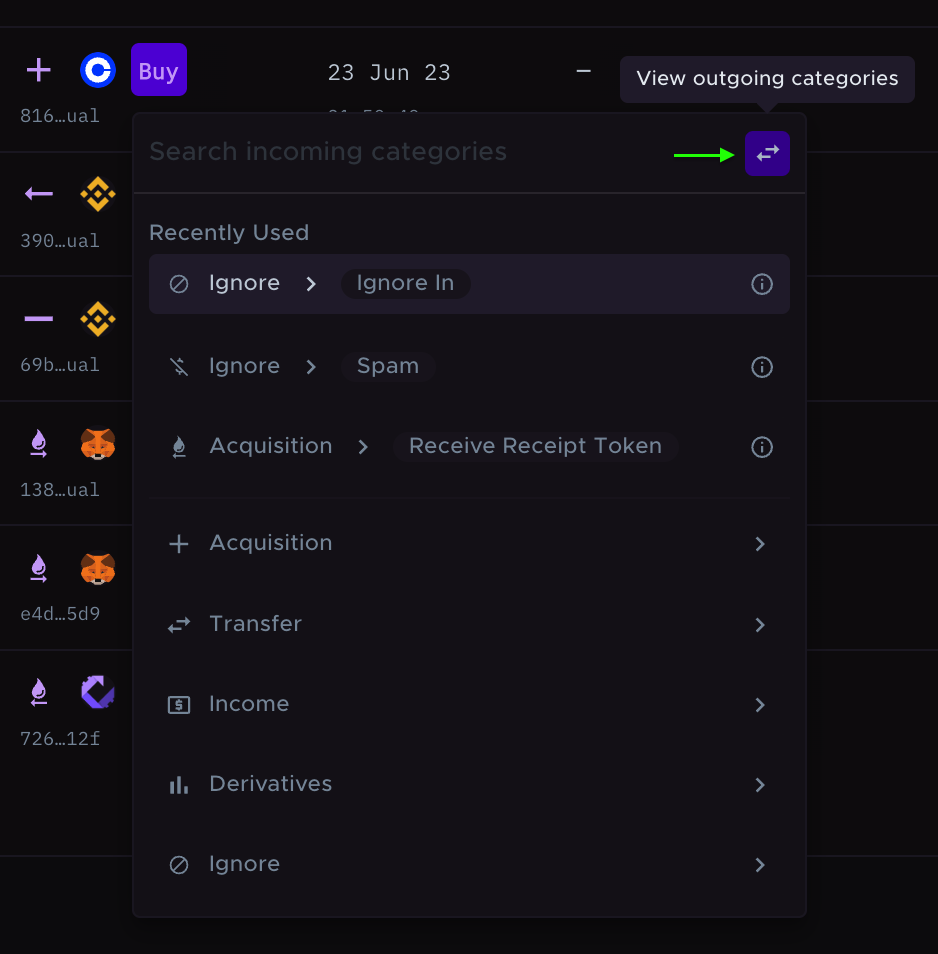
Edit the category
Click the transaction category field and pick a new category from the dropdown.
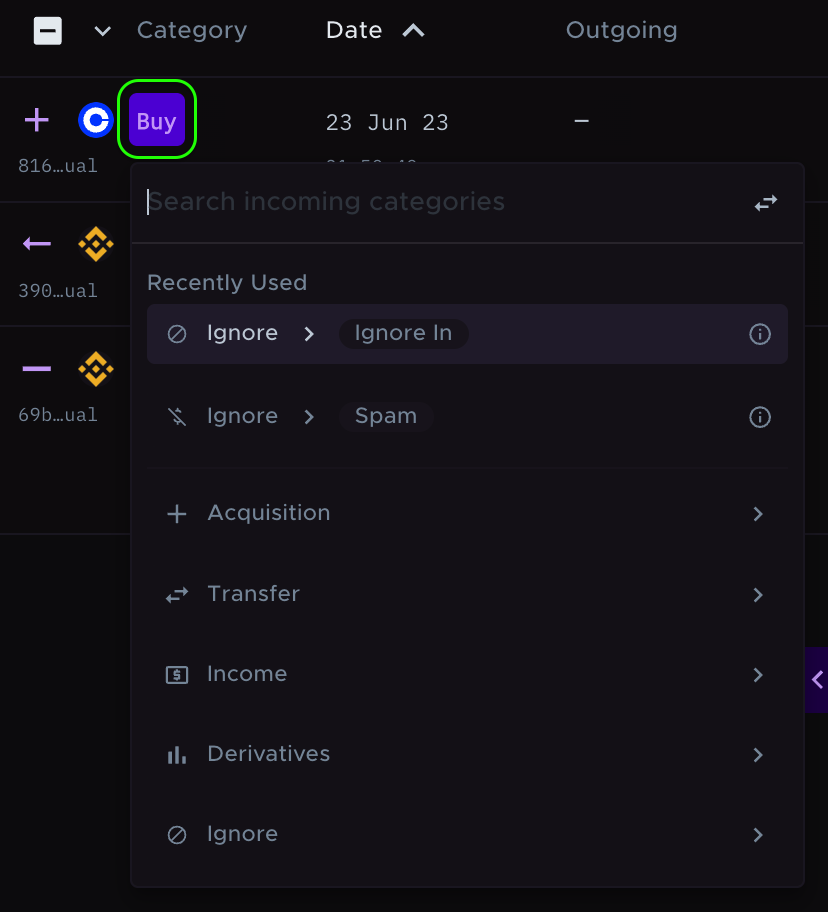
To switch the transaction between incoming and outgoing, click the arrow icon, then pick the right category.
Edit currency, quantity, price, and value
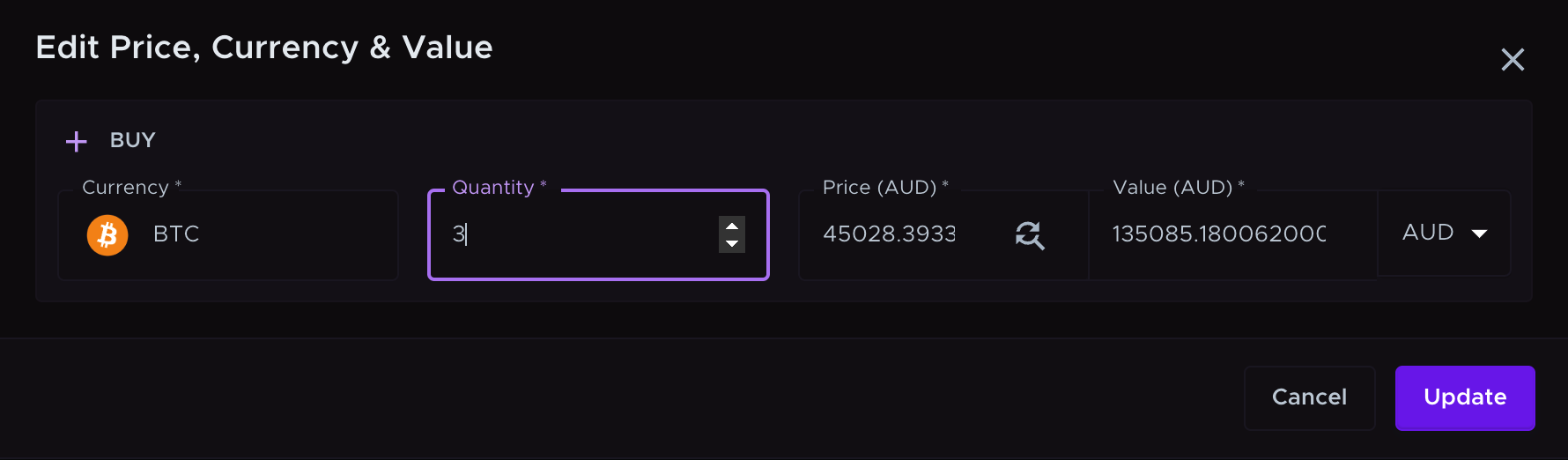
Click the quantity or value field in the transaction.

A pop-up lets you edit the Currency, Quantity, Price, Value, and the Currency used for price and value. Click Update to save.
Editing the price updates the value, and the other way around.
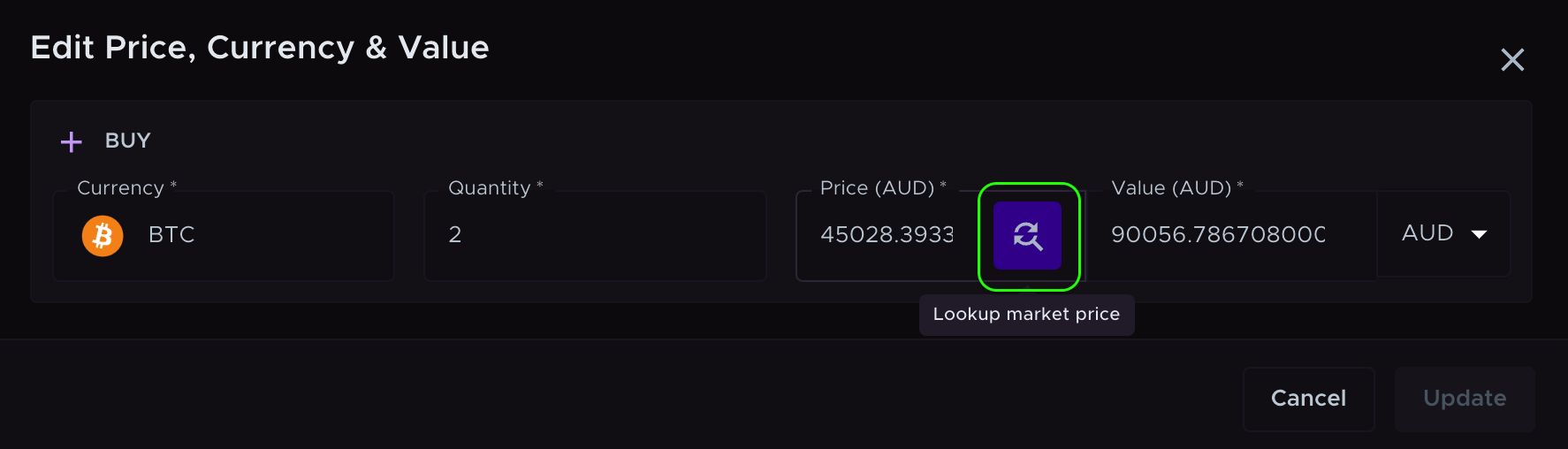
To look up the market price, click the magnifying glass icon.
Edit the fee
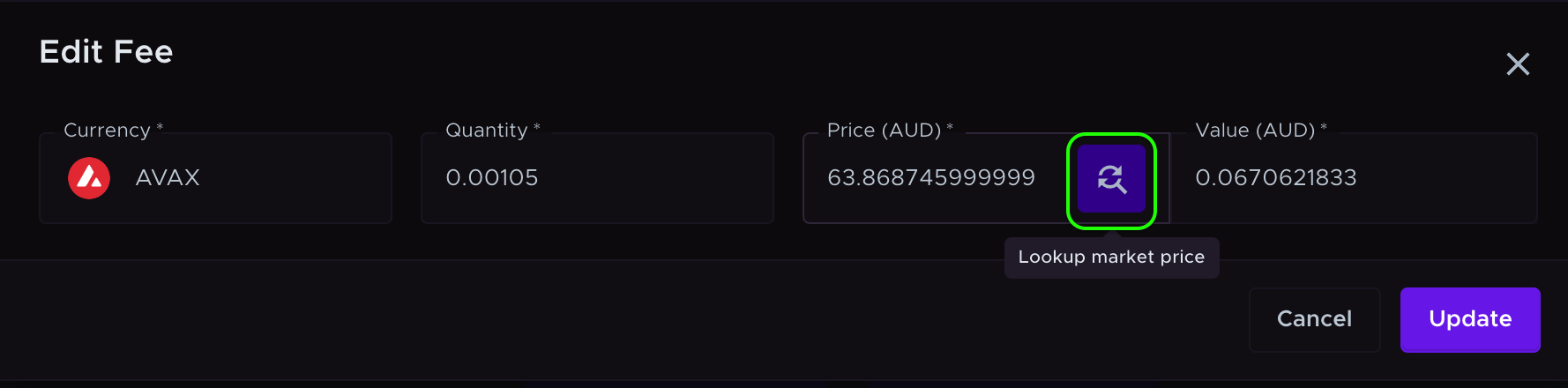
Click the fee amount field in the transaction.

A pop-up lets you edit the Fee currency, Fee quantity, Fee price, and Fee value. Click Update to save.
You can pick any currency as the fee currency.
Editing the Fee price updates the Fee value, and the other way around.
To look up the market price of the fee, click the magnifying glass icon.
Add a fee
If the transaction has no fee yet, click the three vertical dots (kebab menu) on the right side of the transaction and select Edit.
Click Add fee, enter the details, and click Save.

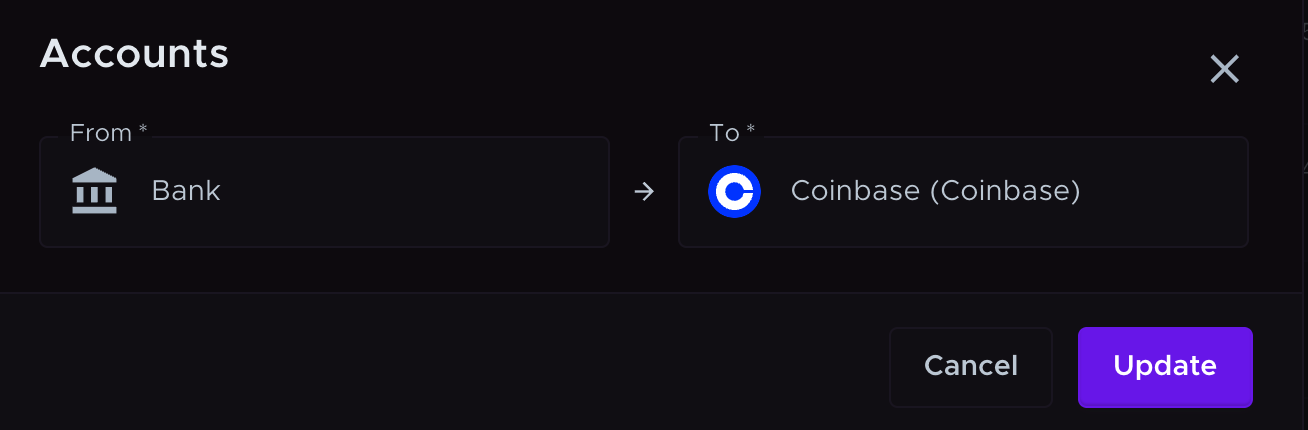
Edit source and destination accounts
Hover over the source or destination account name and click the pencil icon.

A pop-up lets you update the From (source) and To (destination) accounts. Click Update to save.
How to view the edit history
Every change to a transaction is logged in its Edit History tab. From there you can Undo a change or Restore an earlier version. See How to Undo Changes for details.

FAQ
Can I pause auto-refresh while editing transactions?
Yes. Click the status dot in the app navigation and turn off Auto refresh. While it's off, your reports won't recalculate after each edit. When you're done, click Refresh calculations to update your reports, and turn Auto refresh back on if you want.
Can I add a fee to any transaction?
You can add a fee to most transactions, whether they came in by CSV, API, or an OAuth connection.
Exception: You can't add a fee to a transaction that is already categorized as Fee.
Still need help? Email [email protected].