
Handling Duplicate Transactions
What to do when you see duplicate transactions
If you see duplicate transactions where there shouldn't be any, work through these troubleshooting steps first.
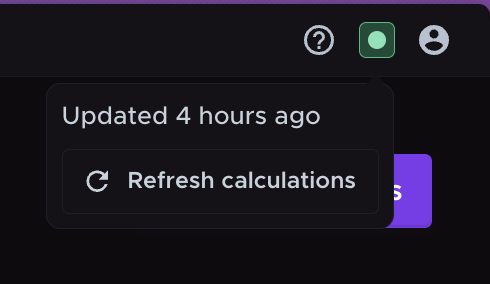
1. Refresh calculations
Click the status dot (green, yellow, or red) in the app navigation, then click Refresh calculations to make sure your report is up to date.
2. Hard-refresh your page
A hard refresh clears your browser cache for the page and forces it to load the latest version.
Windows | Mac | |
Google Chrome | Ctrl + F5 | Cmd + Shift + R |
Firefox | Ctrl + F5 | Cmd + Shift + R |
Safari | n/a | Opt + Cmd + E |
Microsoft Edge | Ctrl + F5 | n/a |
3. Remove the sync that brought in the duplicates
If the first two steps don't remove the duplicates, use the Sync History feature to delete the import that brought them in. Follow the Sync History Feature article.
Why do I see duplicate transactions?
1. You may have hard-synced your wallet or API
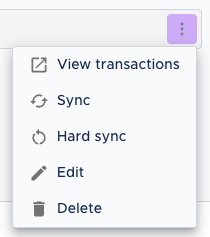
A hard sync can create duplicate transactions. If you clicked Hard sync instead of Sync, you can usually fix it by using the Sync History Feature to delete those transactions.
Read more about hard sync in The Sync Feature.
2. You may have imported the same data from different sources
Transactions from different sources (for example, API and CSV) are all imported, even when they are identical and share the same transaction ID. For example, both transactions in the table below are imported.
Timestamp | Trade Type | Asset | Transaction ID | Import source |
2021-01-01 00:00:00 | Buy | 1 ETH | 123456 | API |
2021-01-01 00:00:00 | Buy | 1 ETH | 123456 | CSV |
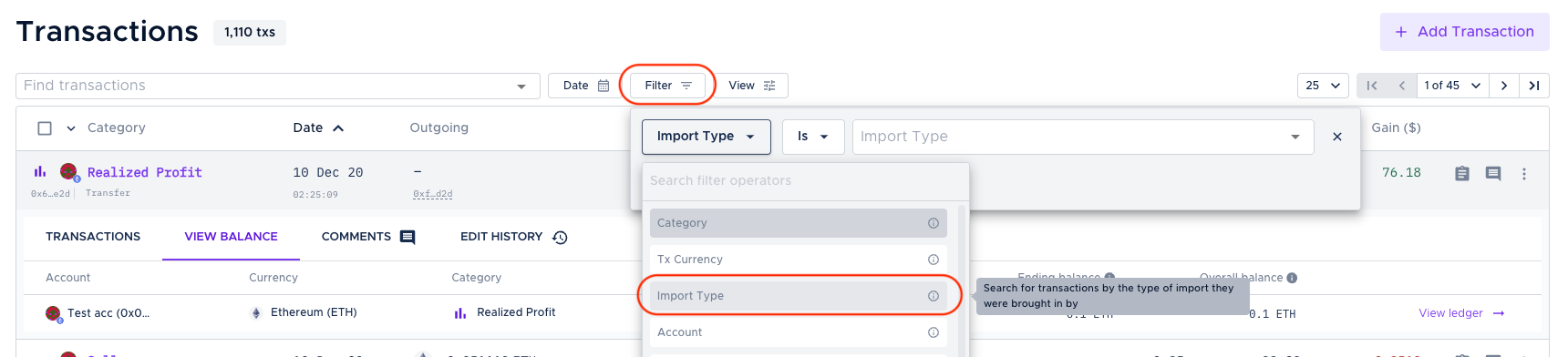
If you think this applies to you, use the filter option on the Transactions page to find the suspected import source. Then decide whether to remove one of the sources.
How does Summ identify transactions imported from CSV files?
Like API syncing, Summ recognizes CSV transactions by their ID. Unlike on-chain wallet transaction IDs, the ID column Summ uses can vary because exchanges use different formats. For example, one exchange CSV might have order ID, trade ID, and transaction ID columns. To see which ID Summ used, open the transaction in the app after you import the CSV file.
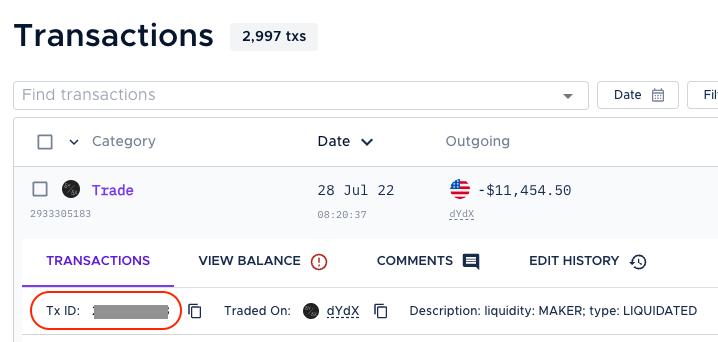
One transaction ID can cover several transactions. So if you import a transaction that differs from an existing one, it is still imported even when the transaction ID is the same.
What happens when you import a CSV that might contain duplicates?
If a transaction with the same ID already exists
If you import an identical transaction, it is not imported. In the table below, only one transaction is imported.
Timestamp | Trade Type | Asset | ID |
2021-01-01 00:00:00 | Buy | 1 ETH | 0000001 |
2021-01-01 00:00:00 | Buy | 1 ETH | 0000001 |
If you import a different transaction with the same ID, it is imported. In the table below, both transactions are imported.
Timestamp | Trade Type | Asset | ID |
2021-01-01 00:00:00 | Buy | 1 ETH | 0000001 |
2021-01-01 00:00:00 | Sell | 0.078 BTC | 0000001 |
If the CSV has no transaction ID
Without a transaction ID, Summ can't tell two identical rows apart, so both are imported. In the table below, both transactions are imported.
Timestamp | Trade Type | Asset | ID |
2021-01-01 00:00:00 | Buy | 1 ETH | |
2021-01-01 00:00:00 | Buy | 1 ETH |
Still need help? Email [email protected].