How to connect Pearler to Summ
Last updated: November 4, 2026
Pearler can send your share trades straight to Summ. When you connect, Pearler sends your full trade history, then adds new buy and sell orders as you place them. You don't need to download and upload CSV files for those trades.
What syncs
What | How it gets into Summ |
|---|---|
Buy and sell orders placed on Pearler (ASX, Cboe Australia and US), including brokerage | Synced from Pearler |
Dividends | Added by Summ. If you reinvest them (DRP), switch dividend reinvestment on in the holding's settings |
Corporate actions (splits, mergers, ticker changes) | Handled by Summ |
Shares transferred in or out of Pearler | Add these yourself |
Pearler Micro portfolios | Add these yourself |
For US trades, Summ uses the AUD/USD exchange rate Pearler executed at, so your Australian cost base matches Pearler's records.
To add transfers or Micro portfolios, import a Pearler CSV export (in Summ, add a Pearler account and follow the import steps shown) or see How to manually add a transaction.
Before you connect
Already imported Pearler CSVs? Pearler sends your full trade history when you connect, and Summ does not remove duplicates between a CSV import and the sync. Any buy or sell already in your CSV files will be counted twice. Before you connect, delete your Pearler ASX and US share CSV imports from Summ. Keep any Micro CSV imports, because Micro portfolios don't sync. Summ shows a warning on the approval screen if this applies to you.
Set your country. Summ needs to know your country before it can add trades. If you're new to Summ, you'll be asked for it during setup. Trades that arrive before your country is set are held and added once you set it.
Connect Pearler
Step 1: Log in to Pearler and go to Settings > Integrations. Next to Summ integration, click Connect.

Step 2: Log in to Summ, or create a free account if you don't have one.
Step 3: On the Authorize access screen, check the Data source shown is the one you want your Pearler trades added to, then click Allow. You'll be returned to Pearler.
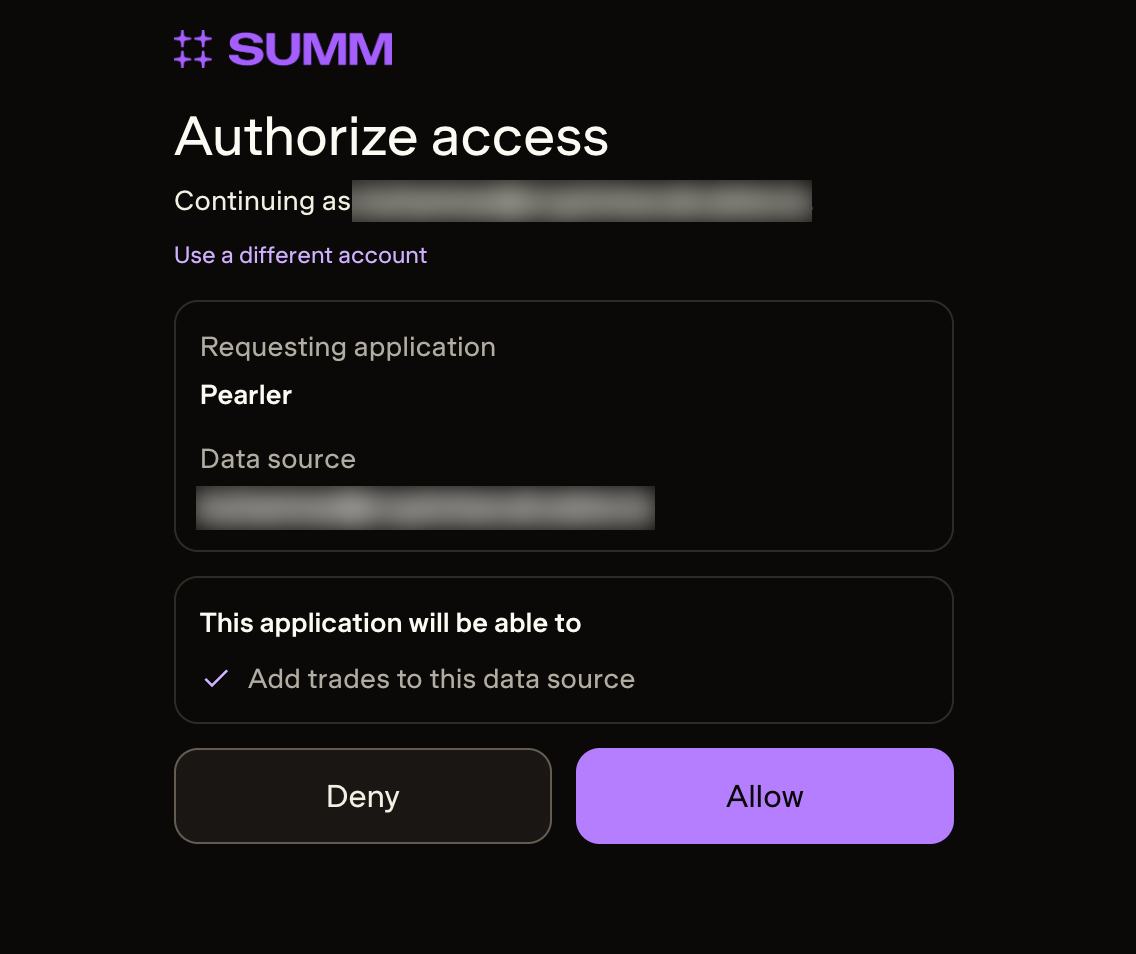
Your Pearler trades will appear in Summ under an account called Pearler on the Accounts page.
For accountants: the trades go to the data source shown on the Authorize access screen. If it shows the wrong client, switch to the right client in Summ first, then start the connection again from Pearler.
Disconnect Pearler
What you do | Trades already in Summ | New trades |
|---|---|---|
Disconnect Summ in Pearler | Stay in Summ | Stop syncing |
Delete the Pearler account in Summ | Removed from Summ | Stop syncing |
To start syncing again after either one, click Connect in Pearler again. Pearler resends your full trade history, so if you only disconnected in Pearler (and your trades are still in Summ), delete the Pearler account in Summ first to avoid duplicates.
Get 30% off as a Pearler customer
Australian Pearler customers get 30% off their first Summ payment. Sign up through summ.com/au/pearler and the discount is applied at checkout.
FAQ
Q: My transferred shares are missing. Why? Pearler only syncs buy and sell orders placed on Pearler. Add shares you transferred in or out with a CSV import or manual transactions.
Q: How do I record my dividend reinvestment (DRP)? Summ adds your dividends for you. If you reinvest them, open the holding in Summ, go to its settings and choose dividend reinvestment, then set the periods you were reinvesting. See Summ Stocks: Frequently Asked Questions for the full steps.
Q: Do I need to add splits, mergers or other corporate actions? No. Summ handles corporate actions for you.
Q: My Pearler Micro portfolio isn't showing. Micro portfolios can't sync. Import them with the Pearler CSV export instead: in Summ, add a Pearler account and follow the import steps shown.
Q: I see some trades twice. This happens when the same trades came in through both a CSV import and the sync, or when Pearler was reconnected while the old trades were still in Summ. Delete the Pearler share CSV imports, or delete the Pearler account in Summ and reconnect from Pearler. See Handling duplicate transactions for more.
Q: I clicked Deny by mistake. Nothing was shared. Go back to Pearler and click Connect again.
Q: I see "We couldn't load the authorization details". The connection request has expired or was started in another browser. Start the connection again from Pearler.
If you have any questions or need help, we're here for you! Feel free to reach out to us via the in-app chat in the bottom-right corner or send your inquiries to [email protected].