
How do I invite my client?
For accountants who want to invite clients to Summ.
Summ's Accountant Portal lets you invite clients to work with you on importing and reconciling transactions and generating reports.
You need an accountant account to invite clients. Accountants can sign up for free at https://app.summ.com/signup-accountant/.
Only the accountant can invite the client. A client can't invite their accountant.
How to invite my client?
There are three ways to invite your client:
Send your client your personal client invitation link.
Add a new client with their email address. They get an invitation as soon as you add them.
Add a new client without an email, and invite them later.
1. Invite clients using your personal client invitation link
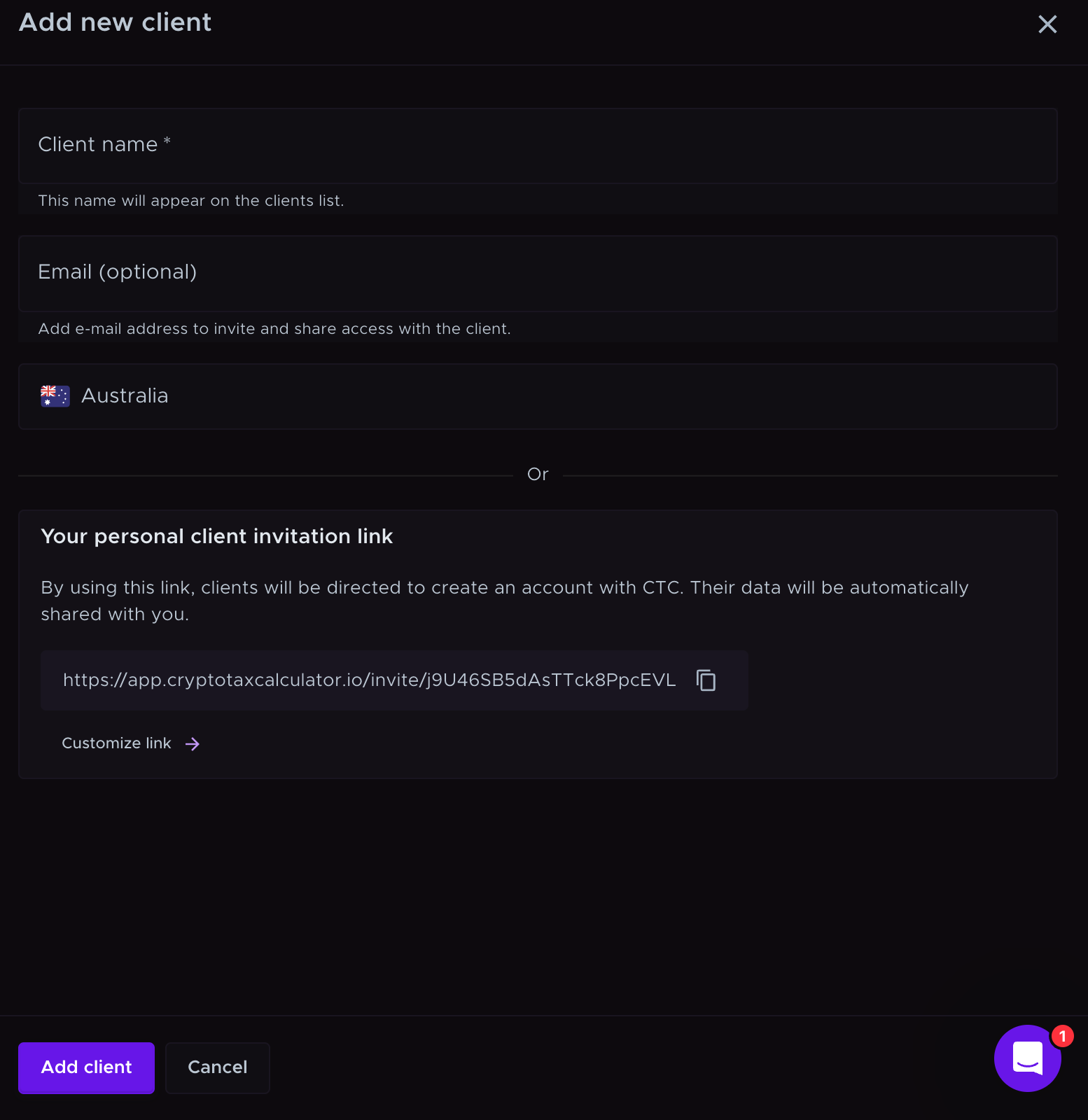
Your personal client invitation link is at the top of your Clients page. It also appears in the Add new client window. Click the copy icon and send the link to your client.
Clients who sign up with this link are automatically linked to you, and their data is shared with you.

The link can't be customized.
2. Add a new client with their email address
a. Go to the Clients page, then click New client.
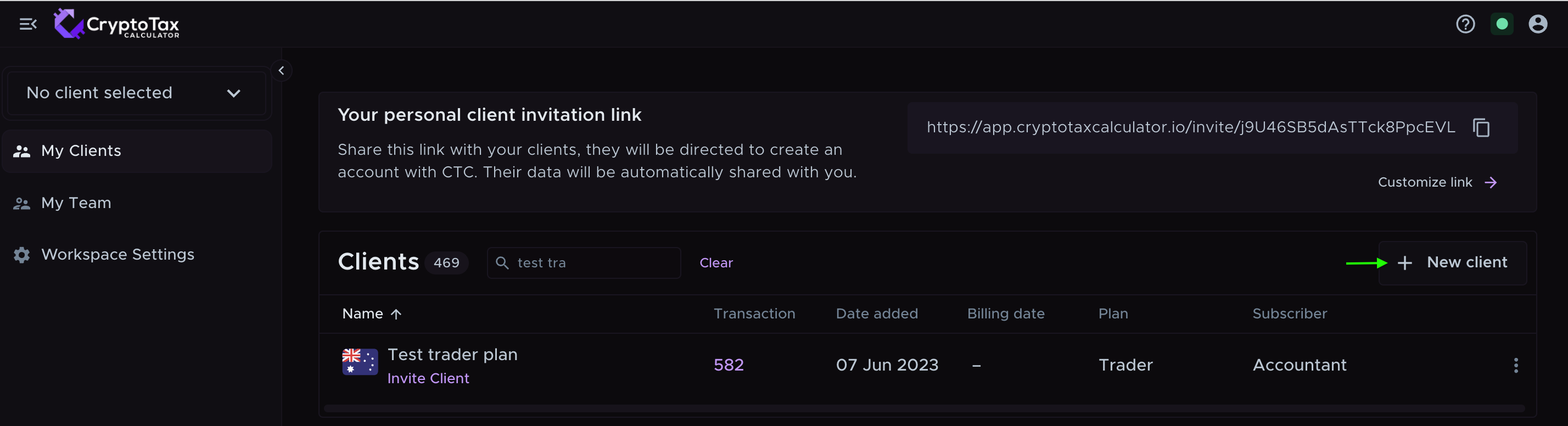
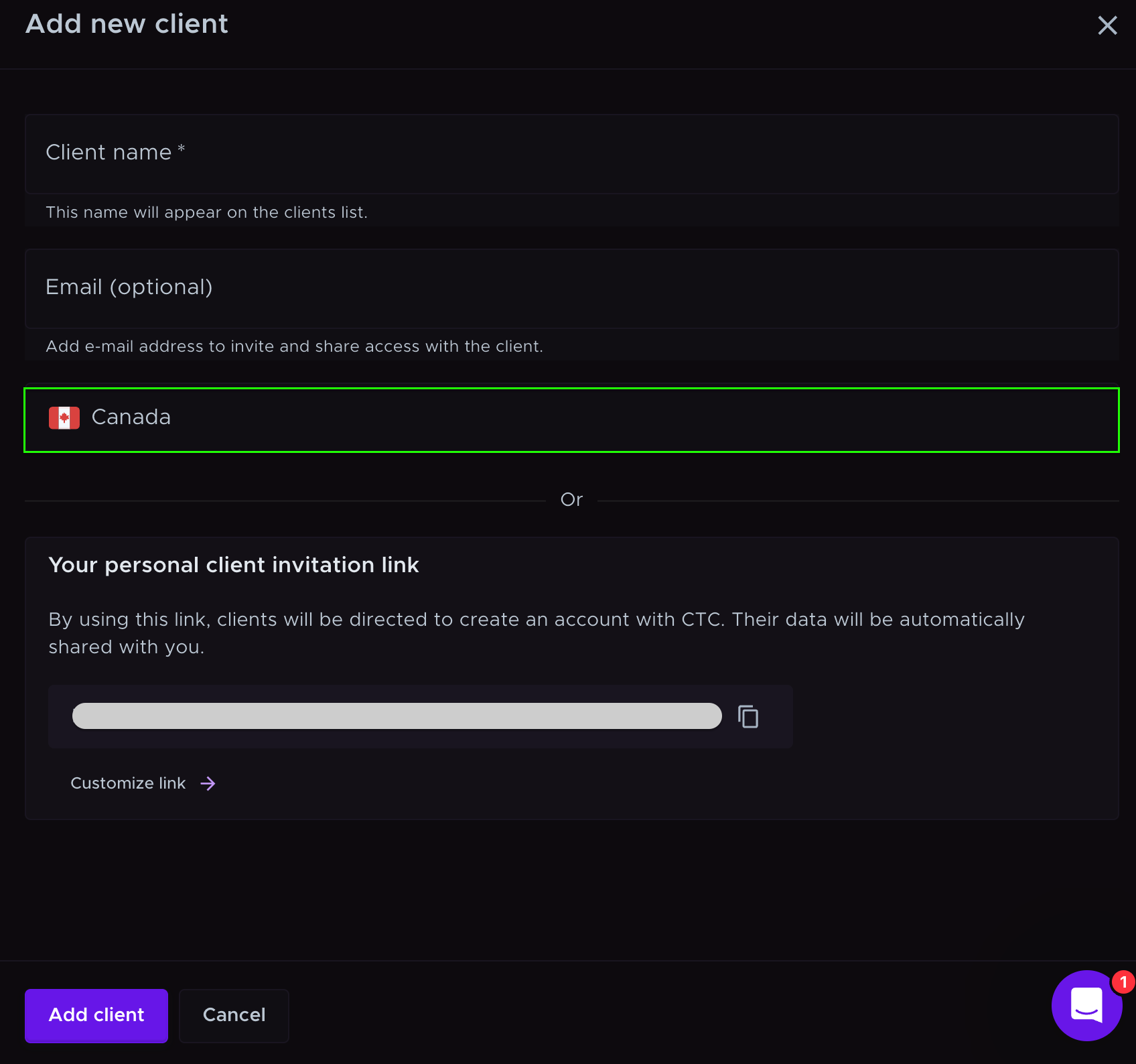
b. Enter the Client name, select the client's Country, and enter their email in Email (optional). Then click Add client. Your client gets your invitation straight away.
3. Add a new client first, then invite them later
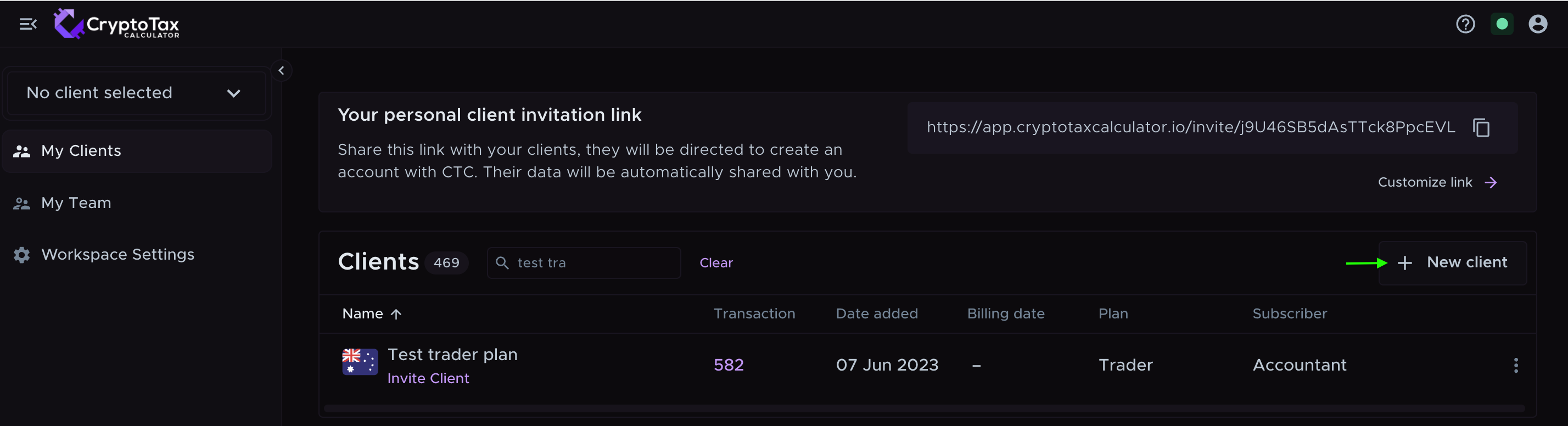
a. Go to the Clients page, then click New client.
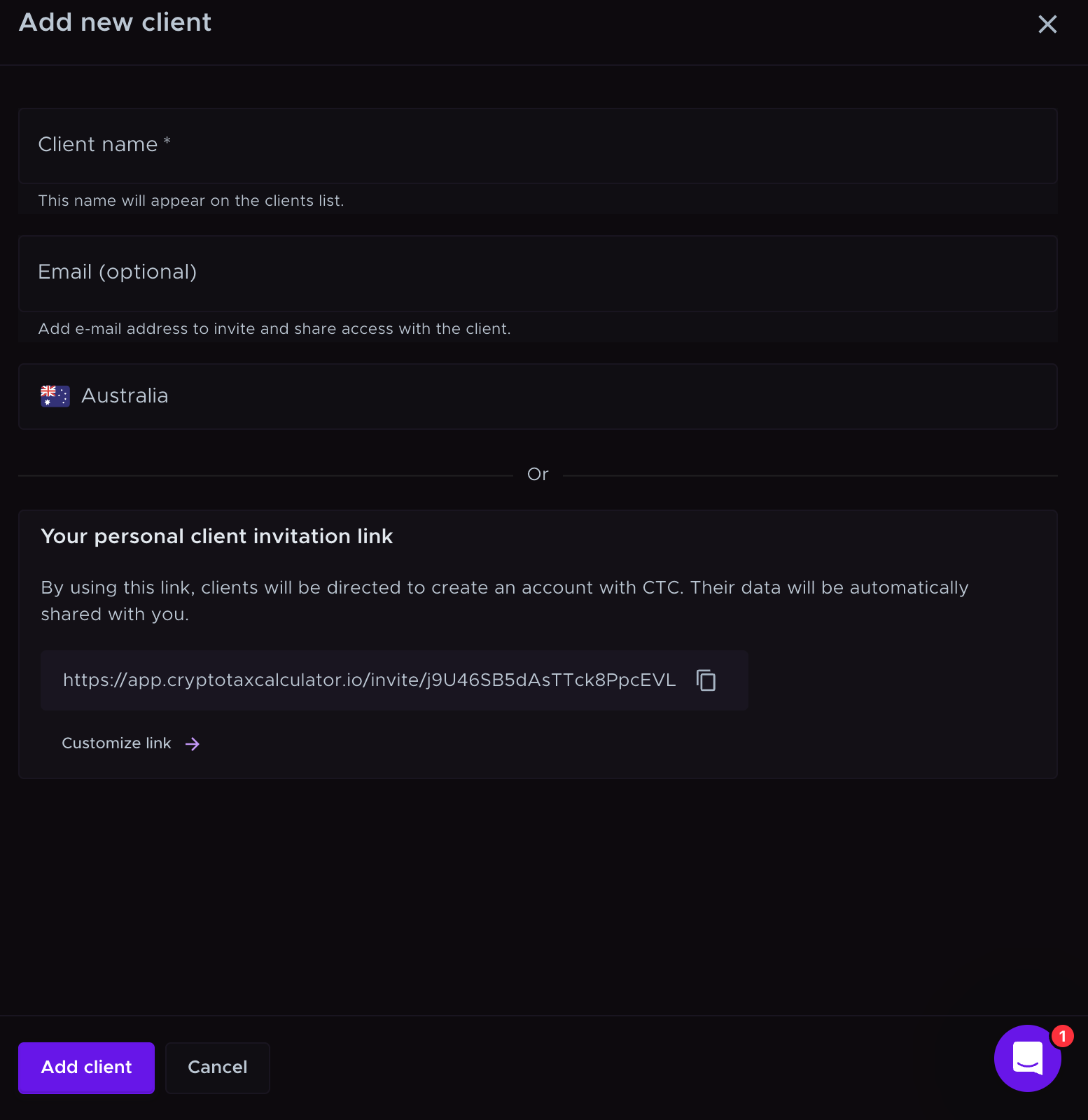
b. Enter the Client name and select the Country. Leave Email (optional) blank. Then click Add client.
c. When you're ready to invite them, go to the Clients page and click Invite Client under the client's name.
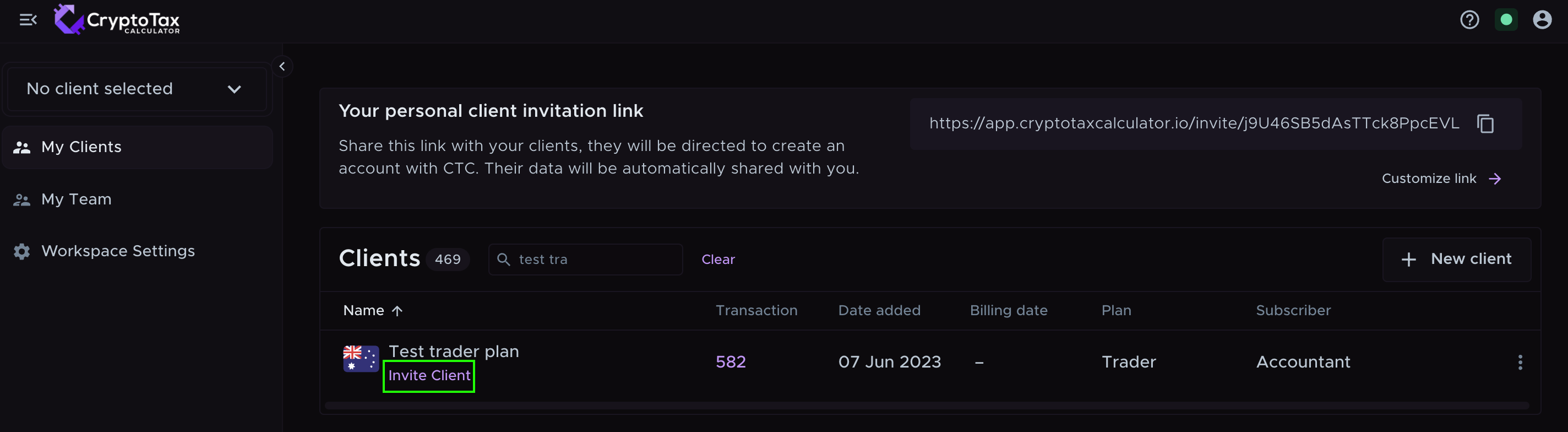
d. Enter Your name and the Client's email, then click Invite.

After an invitation is sent, you can't change the client's email address.
How can my client accept my invitation?
1. Clients with no Summ account yet
Invited with your personal client invitation link | The client is asked to create a Summ account when they click the link. Their data is shared with you automatically. |
Invited by email (New client or Invite Client) | The client gets an email from [email protected] with a Create my account button. After they sign up, they see a pop-up asking them to accept your invitation. |
2. Clients with existing Summ accounts
Invited with your personal client invitation link | The client sees a pop-up message once they click the link. |
Invited by email (New client or Invite Client) | The client gets an email with a Manage invitation button and sees a pop-up when they log in. They can also accept in Settings > Permissions under Received invitations. |
When clients are invited with your personal client invitation link, they see a message similar to the image below when they log in to their Summ account.
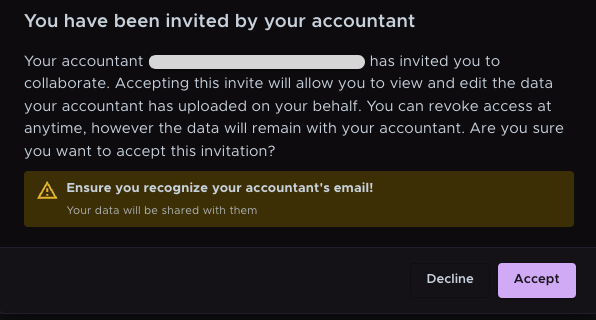
If the client is already linked to another accountant, they have to unlink that accountant before they can accept your invite.
Invitation status
Your Clients page shows each client's invitation status next to their name and email:
Status | What you see on the Clients page | Note |
Accepted | The client's email shows under their name, with no status label and no Invite Client link. | If you paid for the subscription, the client has the same access as you. |
Pending | A clock icon shows next to the client's email. Hover over it to see when you sent the invite. | Ask your client to accept the invite in Settings > Permissions under Received invitations. |
Revoked | A Revoked label shows next to the client's name. The client accepted your invitation before but has since revoked it. | Read Sharing Data Between Accountants and Clients to learn what happens when a client revokes access. To invite them again, click the client's options menu and select Reinvite Client. |
Declined | A Declined label shows next to the client's name. | To invite them again, click the client's options menu and select Reinvite Client. |
Not invited | An Invite Client link shows under the client's name. |
To see every client's status in one list, go to Settings > Account and use Export client list to download a CSV. It includes an Invitation status column.
Important information about data ownership
Once the client accepts your invitation, they have two data sets to choose from:
The data set that the client imported
The data set that you imported
By default, the client sees the data you uploaded on their behalf. Only the client can choose which data set is shared with you. They change this in Settings > Permissions by clicking the invitation under Received invitations and choosing the Working Data.

See Sharing Data Between Accountants and Clients for how the two data sets work.
FAQ
Q: I have a US accountant account. Can I add a client from another country, such as Canada?
Yes. The Accountant Portal lets you manage clients from different countries.
When you add a new client, select the correct country in the Add new client window. You can't change the country after the client is added.
Still need help? Email [email protected].