How to Ensure Data Completeness
Last updated: November 2, 2026
A checklist to find and fix missing data in your Summ account.
Your tax report is only as accurate as the data in it. If balances or calculations look wrong, missing data is the most common cause. Use this checklist to find and fix it.
Note: In this guide, "account" means your exchange account, hot wallet, or hardware wallet.
1. Import all your accounts
Import every account you've used, including:
Accounts to import | Note |
✅ Old accounts you no longer use | Even if you didn't use an account this financial year, its history (asset movements, acquisitions, and disposals) can affect your calculations. |
✅ Accounts you've lost access to, or that were stolen or hacked | Even if you no longer control the account, its transaction history is needed for accurate calculations. |
Don't import these:
Accounts not to import | Note |
❌ Exchange address | Don't import an exchange's wallet address unless you're doing taxes for the exchange itself. Exchange addresses usually hold funds for many customers. Import your exchange transactions by API or file upload from your exchange account instead. |
❌ Protocol contract address | Don't import a protocol's address unless you're doing taxes for the protocol itself. |
❌ A friend's or family member's account | Don't import accounts you don't own or don't want in your tax reporting. For transactions between your accounts and theirs, you can use the Gift or Personal Use category. |
2. Make sure your API and wallet imports are up to date
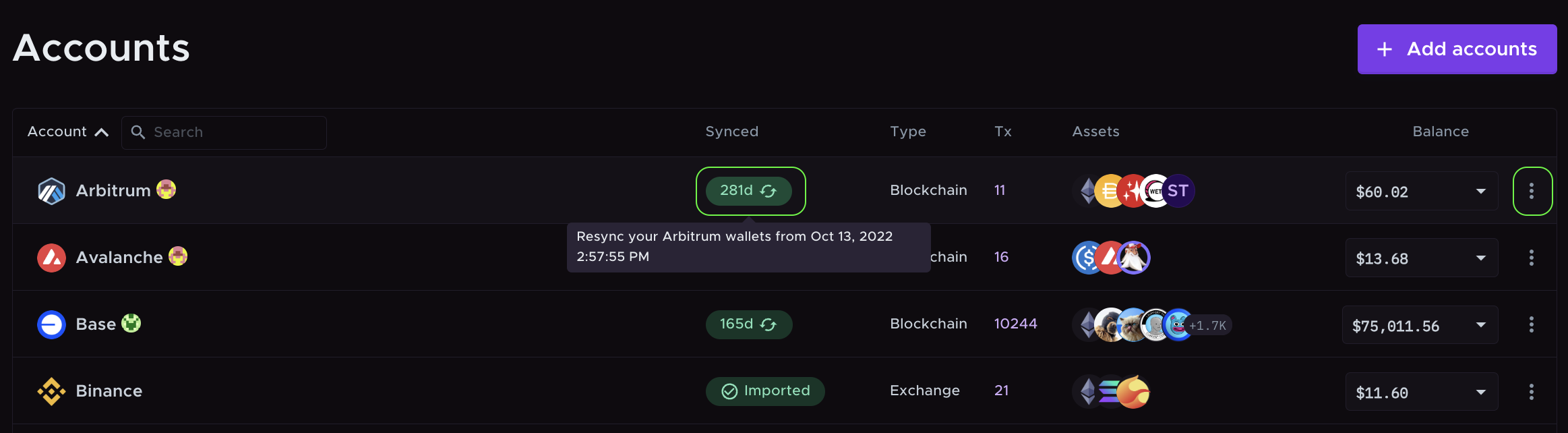
By default, Summ only syncs your accounts when you ask it to. To bring an account up to date, go to the Accounts page and click the sync button for the account, or open the ⋮ menu and choose Sync.
If you turned on daily auto-sync in the Summ mobile app, your accounts also sync once a day.
3. Make sure there are no gaps in uploaded files
If you uploaded CSV files, open the account's ⋮ menu and choose View transactions. Check the first and last transaction dates to confirm your whole history is there.

Note: Import all years, not only the current financial year.
4. Follow the instructions on the Accounts page
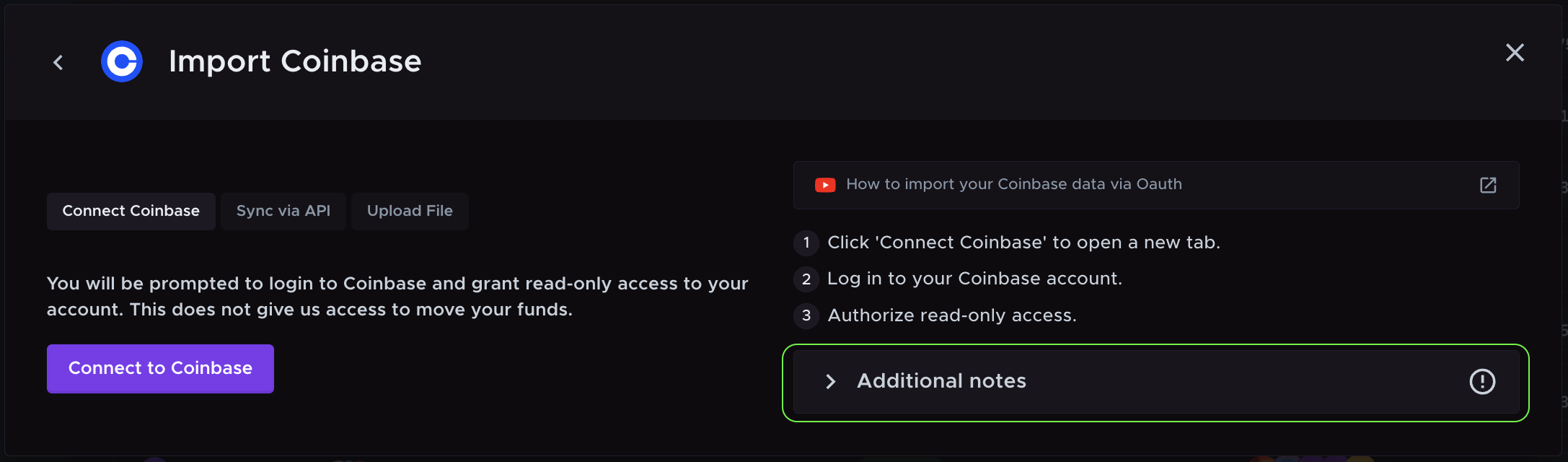
Each integration on the Accounts page has its own import instructions. Follow them closely so nothing is missed.
Option | Note |
Connect exchange account (OAuth) |
|
Sync via API | Exchange:
Wallet:
|
Upload file | Exchange:
Wallet:
|
Note: Always read the notes in each integration's instructions. They list data limits and any extra steps you need.
5. Review ignored or spam transactions
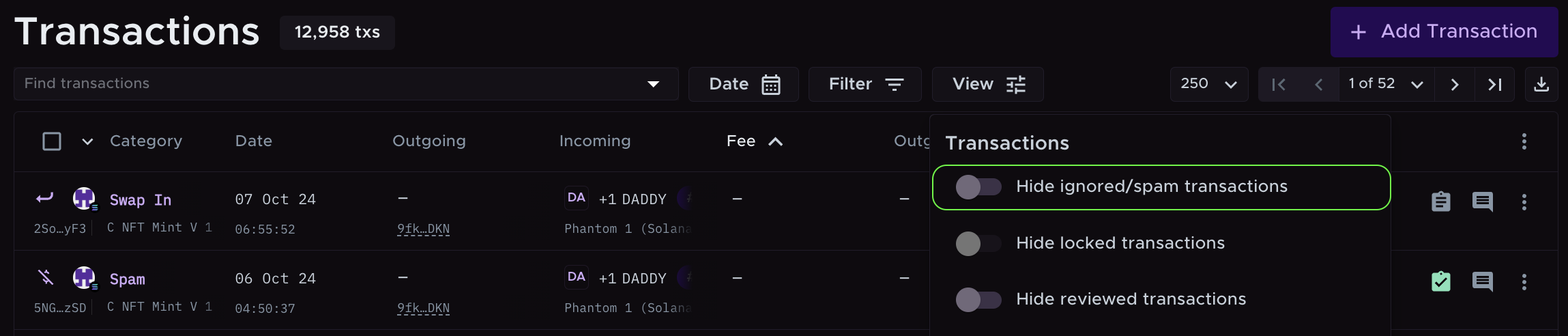
On the Transactions page, check that no transactions are categorized as Ignored or Spam by mistake. These are left out of your calculations.
6. Check your history if you imported from a custom date
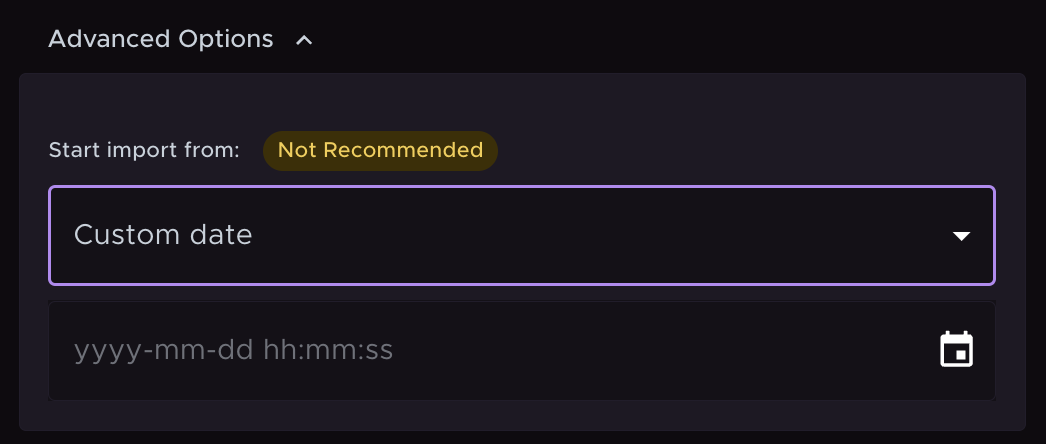
If you used Start import from to import from a set date, make sure you've also imported your starting balances and cost basis for the period before that date.
7. Hard sync the account if needed
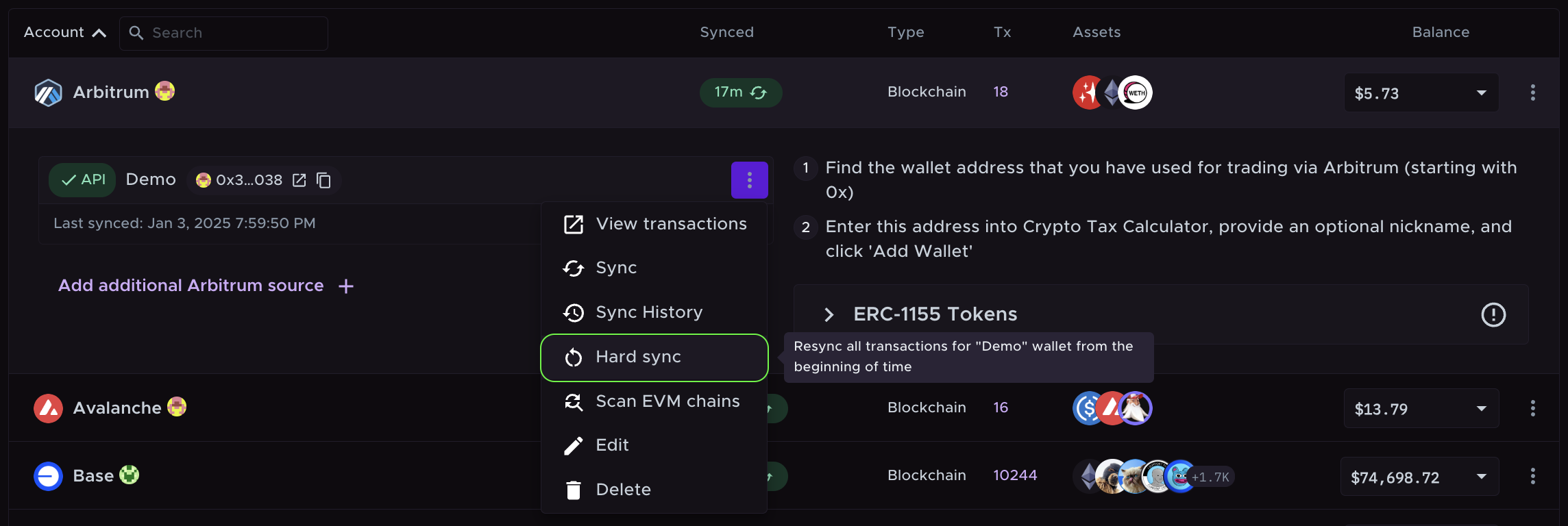
Sometimes a Hard sync picks up missing data, for example after an exchange or data provider improves its API. A hard sync re-imports the account's whole history. For details, see The Sync Feature.
Adding missing data
If you've worked through the checklist and data is still missing, you can add it yourself in two ways:
FAQ
How do I import data from an exchange that has shut down or gone insolvent?
Try these ways to recover your records:
Search your email. Look for trade confirmations, deposit and withdrawal notices, or account statements from the exchange.
Check your backups and records. If you exported reports or saved your history before, you can import those files into Summ.
Check community forums. Other users may have found ways to recover data, for example on Reddit, Telegram groups, or Discord servers.
Estimate missing data (last resort). If no records exist, you may need to estimate transactions from:
Your known balances before and after the shutdown.
Transfers to and from your other wallets or exchanges.
Once you've pieced the details together, you can:
Manually add transactions in Summ.
Use the Custom CSV template for bulk imports.
Tip: Keep a record of any assumptions you made.
Still need help? Email [email protected].