FAQ: Which Side of Data Should I Share with My Accountant?
Last updated: November 2, 2026
Summ lets you share data with your accountant so you can work on your crypto reports together. Once you accept your accountant's invitation, you choose which data set is the shared Working Data:
Accountant data: the data your accountant imported for you.
My imported data: the data you imported in your own account.
Only you, the client, can choose the working data. To change it, go to Settings > Permissions, click the invitation under Received invitations, pick the data set, and click Save.
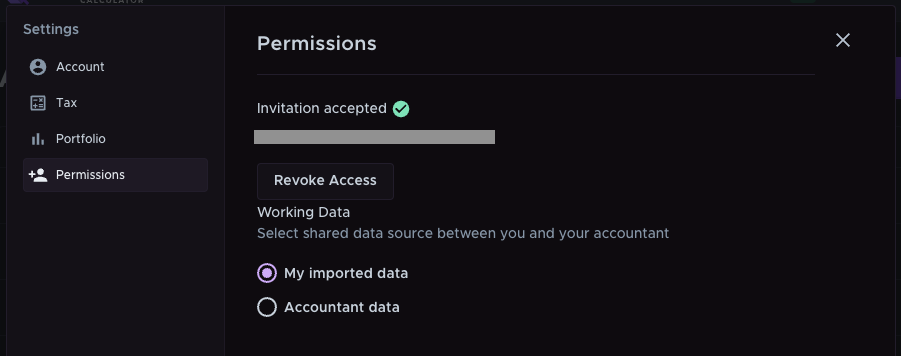
Decide which side is your working data before you start importing. The two data sets are kept separate, so work done in one doesn't appear in the other.
TL;DR
There are three common scenarios:
Scenario | Suggested working data | What happens after you revoke access |
Your accountant has prepared all the data for your review. | Accountant data | All working data stays with the accountant. |
You already have your data ready to share with the accountant. | My imported data | All working data stays with you. |
Your accountant has invited you but neither of you has started work yet. | My imported data | All working data stays with you. |
Scenario 1: Your accountant has prepared all the data for your review.
Your accountant may have collected your full transaction history, including the exchanges and wallets you used, and worked on it in their account. They then invite you to review their work.
In this case, select Accountant data as the working data so you can review what they've done.
Note: If you revoke your accountant's access, you will no longer have access to the accountant's data set.
Scenario 2: You already have your data ready to share with the accountant.
If you've already imported and worked on your data and want your accountant to review it, select My imported data as the working data. Your accountant can then review your work.
You keep access to this data after you revoke your accountant's access.
Scenario 3: Your accountant has invited you but hasn't done any work yet.
If neither of you has started, choose My imported data. You will own the data, so keep your login details safe.
You keep access to this data after you revoke your accountant's access.
The best way to work with your accountant
It's usually easier to import all your exchanges and wallets yourself. Your accountant then doesn't need to ask you for API keys, wallet addresses, or CSV files. Once everything is imported, you and your accountant can review the transactions together.
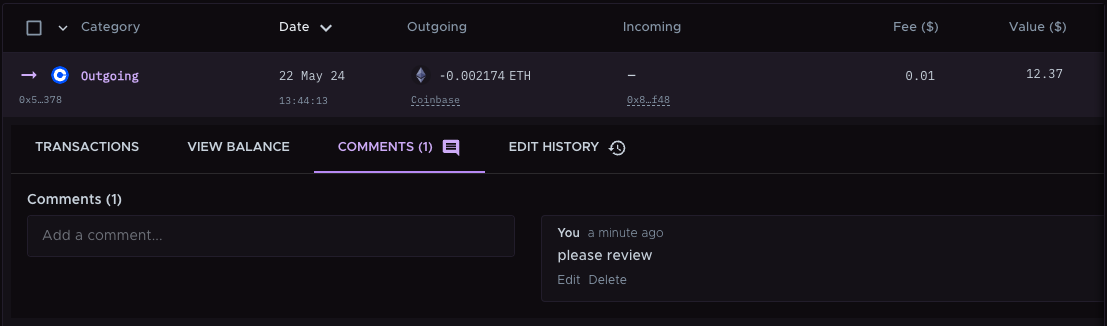
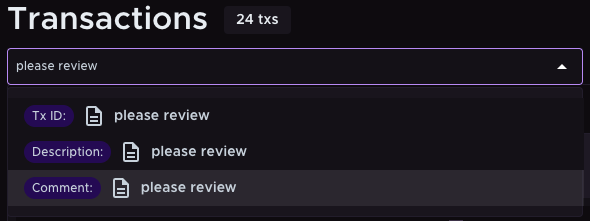
To discuss a transaction with your accountant, leave a comment on it. You can then filter transactions by comments to find and act on them.
Leave a comment on the transaction:
Filter by comments and take action:
What happens when you revoke your accountant's access?
To revoke access, go to Settings > Permissions, click the invitation under Received invitations, then click Revoke Access. There are two scenarios:
Scenario | Result of revoking your accountant's access |
1. The data you need is in My imported data | You own the data. It stays with you after you revoke your accountant's access. |
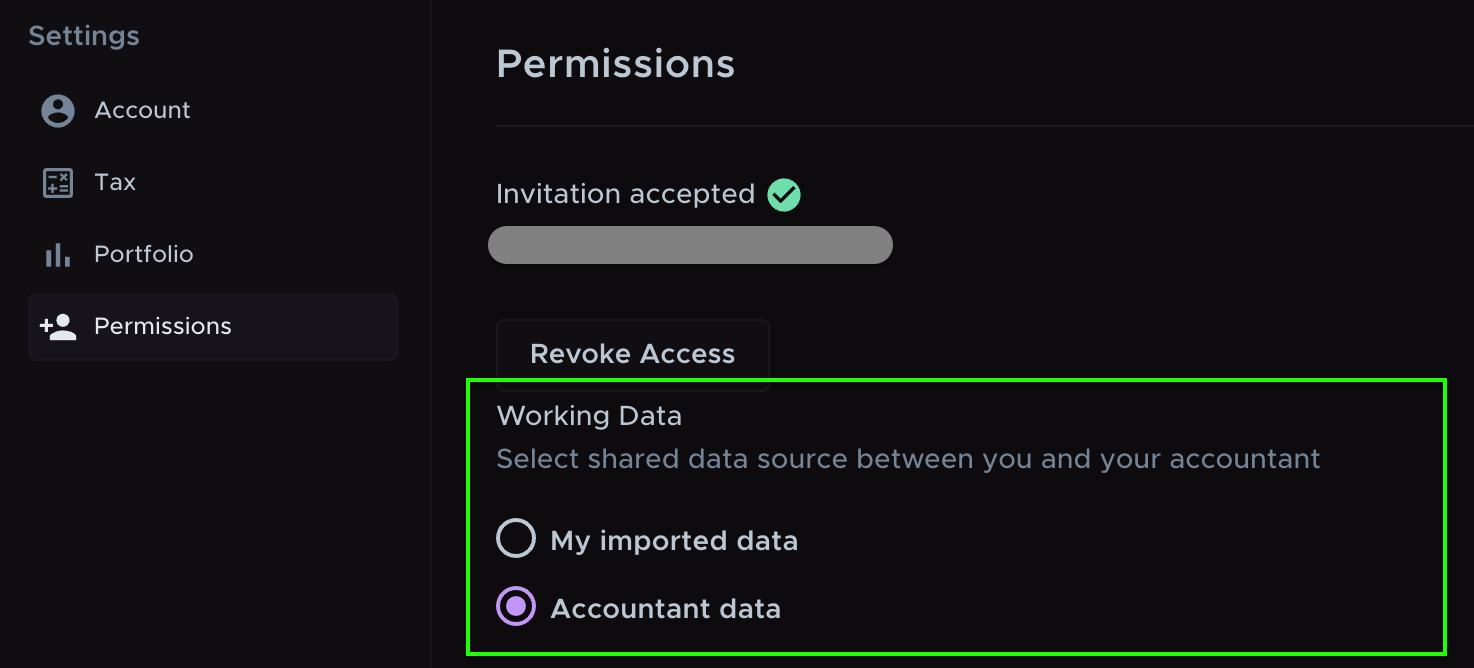
2. The data you need is in Accountant data | The accountant owns the data. You lose access to Accountant data once you revoke access. |
Always double-check your Working Data before you revoke your accountant's access.
FAQ
Q: How can I access the Accountant data again after I revoke access?
Ask your accountant to send you a new invitation. Once you accept it, you'll have access to the Accountant data again.
Q: What if I want to change accountants, but my data is in Accountant data?
To accept a new accountant's invite, you first need to unlink your current accountant. Their copy of the data stays with them, so you lose access to Accountant data. Before you unlink, ask your current accountant how they can get that data back to you. If you're still stuck, contact support.
Read more about sharing data with your accountant:
Still need help? Email [email protected].